
Home / QuickBooks and accounting
Grant tracking beside QuickBooks
Grant money, spending, and outcomes on one screen
Keep QuickBooks or any accounting system as your book of record. Bring your spending into OutcomesPath with an Excel export in a few minutes, and see every grant's budget, what is left, and what each credential and placement cost.
Included with OutcomesPath case management at no extra cost. Works with QuickBooks Online, QuickBooks Desktop, Xero, Sage Intacct, NetSuite, MIP, and any system that exports to Excel.
What your accounting system cannot tell you
QuickBooks knows what you paid and which grant paid for it. It does not know who the money helped or what happened to them next. OutcomesPath joins the two.
Budget and pace for every grant
Budget, spending, and what is left, with a warning when a grant is spending ahead of or behind its calendar.
Cost per person and per placement
Spending is tied to the people it paid for, so you can show a funder what one credential or one job cost.
One set of numbers
Your case managers and your bookkeeper stop keeping separate spreadsheets that never agree.
Run grants the way your funder approved them
The tools fiscal staff and auditors ask for, built into the same Funding pages.
Budget lines inside each grant
Enter the lines your funder approved, such as training, supportive services, and staff. Every payment is checked against its line, and OutcomesPath warns you when a line runs over or when spending lands where the grant has no line.
Payment requests with approval
A caseworker asks for a bus pass, a training fee, or tools from the case file. An owner or admin approves or declines it in one click, approval records the payment in the right fund, and it lands in the file for your bookkeeper. Receipts go with it, owners get an email when a request arrives, and auditors see who asked, who approved, and when.
Matching funds and in-kind support
Record the match a grant requires and every cash or in-kind contribution toward it, such as volunteer hours or donated space. See how much is met and get a warning when a grant is ending with match still to raise. Match never counts as spending.
Funder report reminders
Add each grant's reporting schedule once. The dashboard shows what is due in the next 30 days, and owners and admins get an email a week before every due date.
Drawdowns and reimbursements
Record each request for payment you send a funder, fill the amount from the spending in that period, and mark it paid. See what is owed to you and what is spent but not yet requested.
Indirect costs
Enter the rate in your grant agreement and the spending it applies to. OutcomesPath shows how much indirect cost the grant allows as you spend, against the indirect budget.
Spending caps per person
Set a cap per person for a grant or one of its lines, such as a training account limit. Staff are warned before a payment, request, or approval goes over it.
Subawards to partners
Pass part of a grant to a training provider or partner agency. The partner sends invoices with receipts from their own portal, you approve them, and approvals can never go past the subaward.
Grant closeout in one click
At the end of a grant, one Excel packet holds the checklist, budget and its history, every payment with its receipt, approvals, match, drawdowns, reports, subawards, and outcomes.
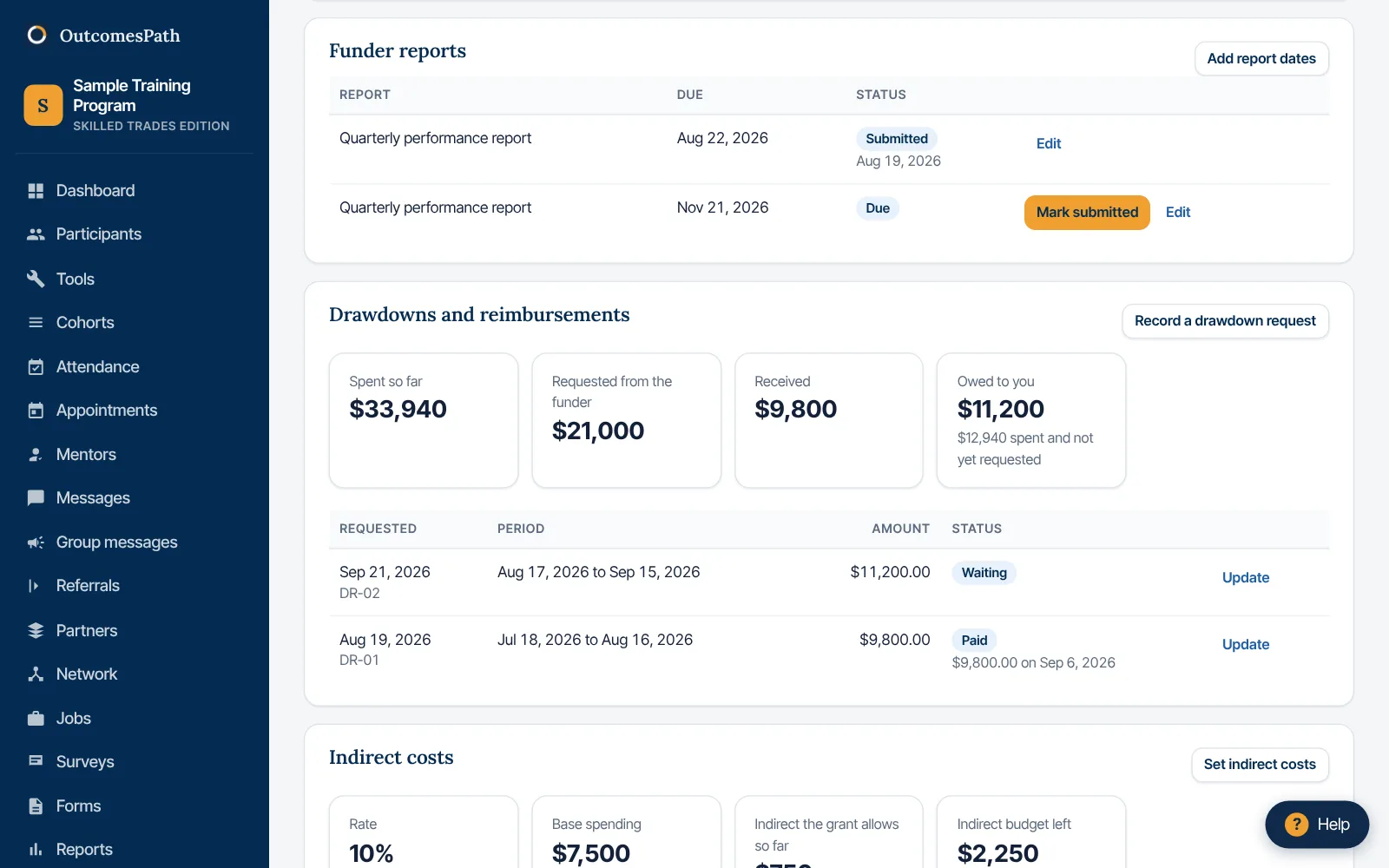
A sample funding dashboard
This is what the Funding page looks like once a few months of spending are in. The numbers are made up for the example.
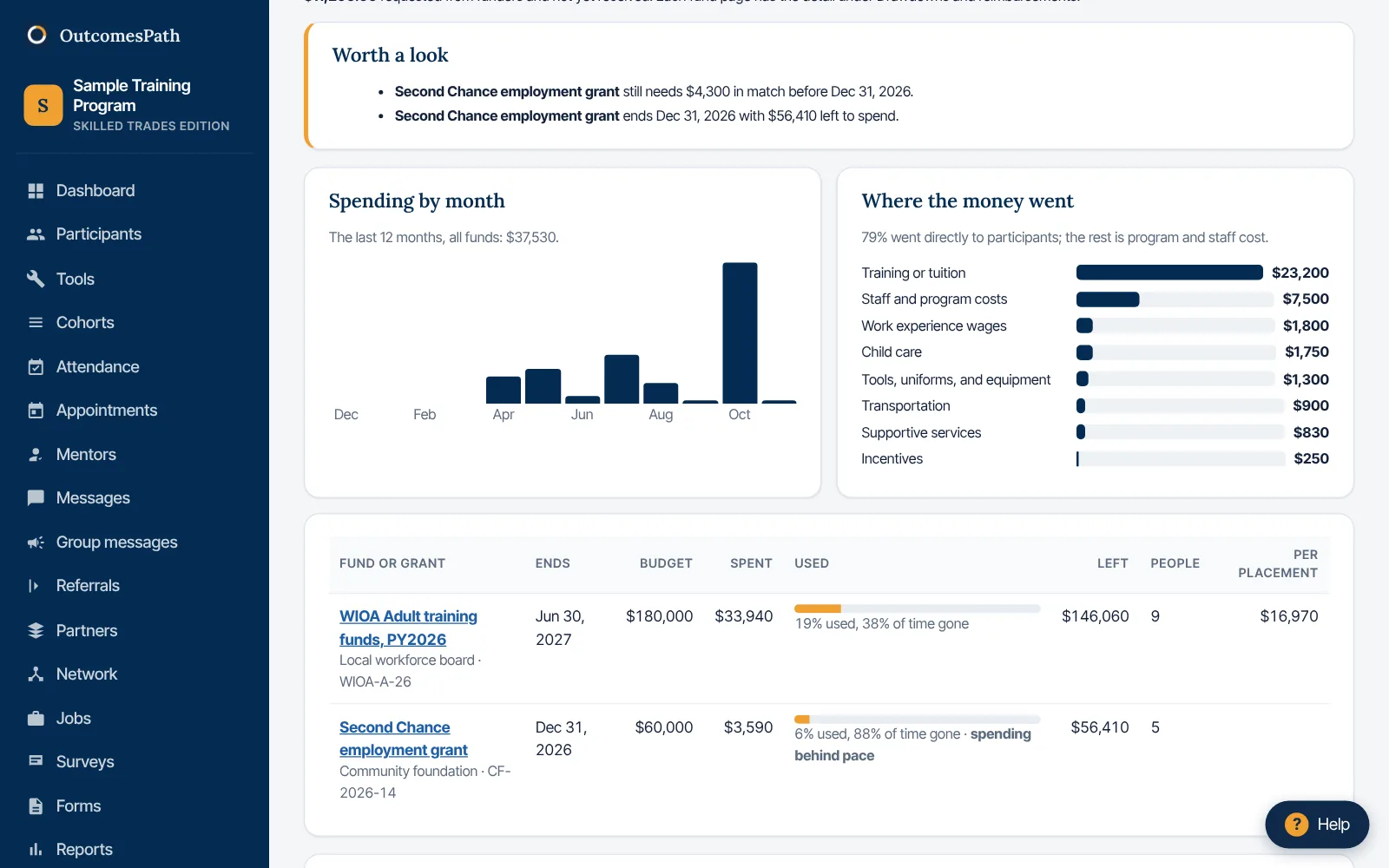
Sample data
Worth a look
- Youth career pathways, foundation gift is over budget by $18,600.
- Second Chance employment grant ends Dec 31, 2026 with $21,300 left to spend.
- County reentry contract: the supportive services line is over by $1,840.
- 3 payment requests are waiting for approval.
Spending by month
The last 12 months, all funds
Where the money went
88% went directly to participants
| Fund or grant | Ends | Budget | Spent | Left | People | Per placement | Pace |
|---|---|---|---|---|---|---|---|
| WIOA Adult training funds, PY2026 | Jun 30, 2027 | $320,000 | $171,900 | $148,100 | 71 | $5,372 | On pace |
| County reentry contract, FY2027 | Jun 30, 2027 | $180,000 | $62,280 | $117,720 | 38 | $6,920 | Behind pace |
| Second Chance employment grant | Dec 31, 2026 | $90,000 | $68,700 | $21,300 | 29 | $5,725 | On pace |
| Youth career pathways, foundation gift | Aug 31, 2027 | $50,000 | $68,600 | -$18,600 | 16 | $6,236 | Over budget |
Sample reports
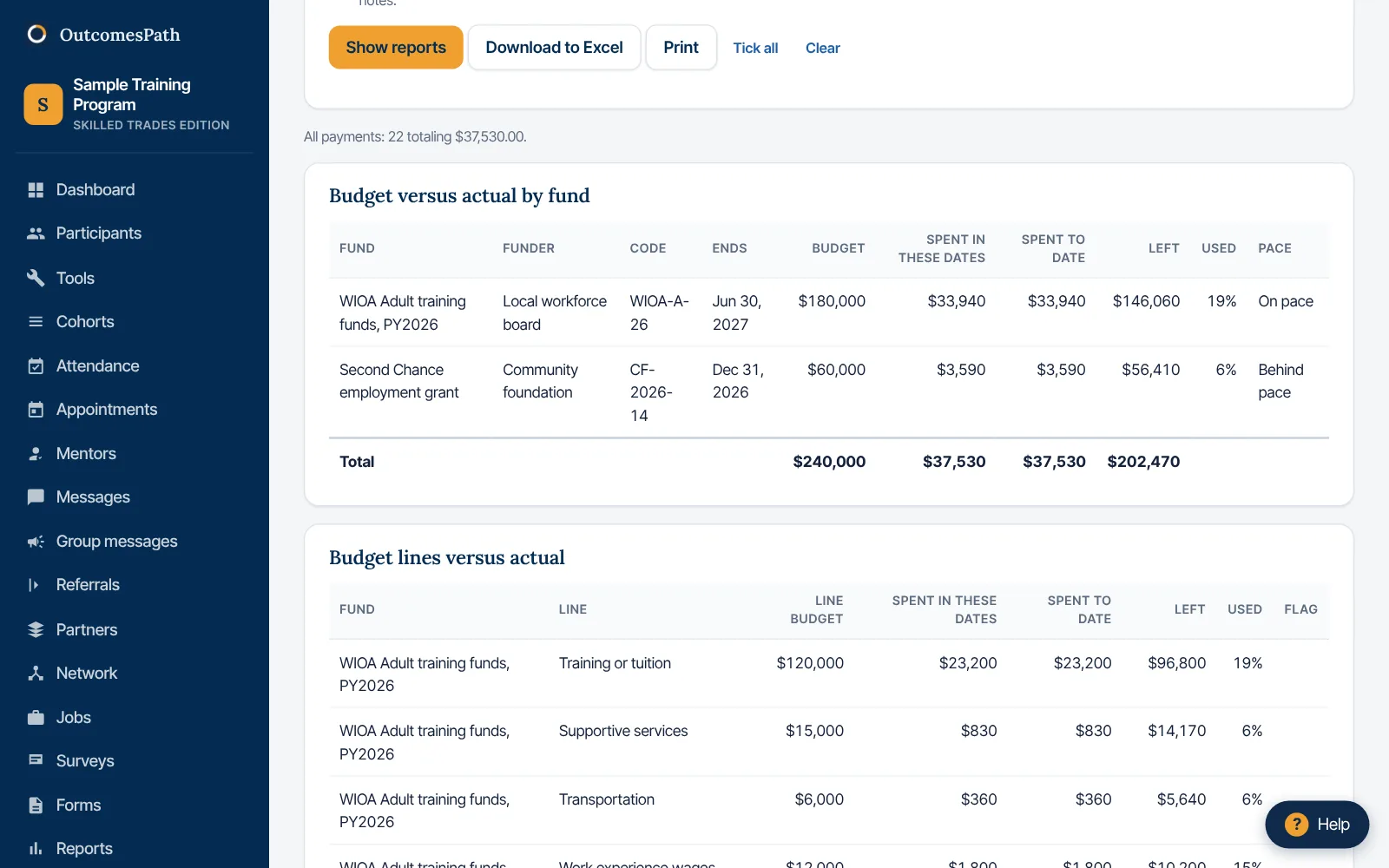
Three of the standard reports, shown with sample data. Each one shows on screen, prints cleanly, and downloads to Excel.
Sample report
Budget versus actual by fund
| Fund | Budget | Spent this quarter | Spent to date | Left | Used |
|---|---|---|---|---|---|
| WIOA Adult training funds, PY2026 | $320,000 | $58,420 | $171,900 | $148,100 | 54% |
| County reentry contract, FY2027 | $180,000 | $21,150 | $62,280 | $117,720 | 35% |
| Second Chance employment grant | $90,000 | $19,300 | $68,700 | $21,300 | 76% |
| Total | $590,000 | $98,870 | $302,880 | $287,120 |
Sample report
Outcomes per dollar
| Fund | Spent | People served | Credentials | Placed | Average wage | Cost per placement |
|---|---|---|---|---|---|---|
| WIOA Adult training funds, PY2026 | $171,900 | 71 | 44 | 32 | $22.40 | $5,372 |
| County reentry contract, FY2027 | $62,280 | 38 | 12 | 9 | $18.75 | $6,920 |
| Second Chance employment grant | $68,700 | 29 | 15 | 12 | $19.60 | $5,725 |
Sample report
Spend-down forecast
| Fund | Ends | Left today | Average per month | Projected by end date | Left over (or short) | Status |
|---|---|---|---|---|---|---|
| WIOA Adult training funds, PY2026 | Jun 30, 2027 | $148,100 | $19,470 | $145,400 | $2,700 | On pace |
| County reentry contract, FY2027 | Jun 30, 2027 | $117,720 | $7,050 | $52,650 | $65,070 | Behind pace |
| Second Chance employment grant | Dec 31, 2026 | $21,300 | $16,900 | $25,600 | -$4,300 | Runs short |
Twenty-two standard financial reports
Open Financial reports, choose your dates and funds, and tick the reports you want. View them, print them, or download them all as one Excel workbook with a sheet for each.
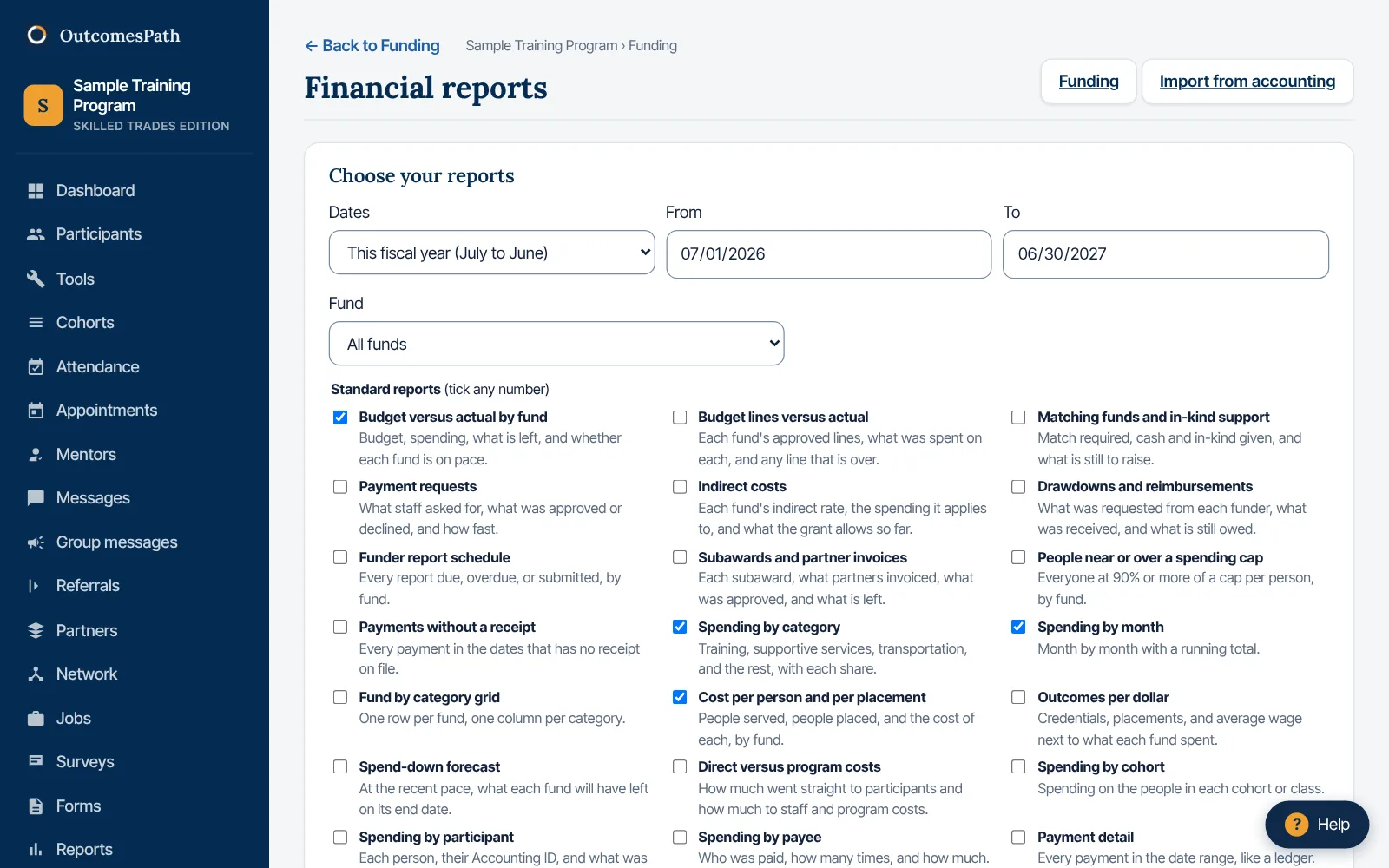
- Budget versus actual by fundBudget, spending, what is left, and whether each grant is on pace.
- Budget lines versus actualEach grant's approved lines, what was spent on each, and any line that is over.
- Matching funds and in-kind supportMatch required, cash and in-kind given, and what is still to raise.
- Payment requestsWhat staff asked for, what was approved or declined, and how fast.
- Indirect costsEach grant's indirect rate, its base, and what the grant allows so far.
- Drawdowns and reimbursementsWhat was requested from each funder, what was received, and what is still owed.
- Funder report scheduleEvery report due, overdue, or submitted, by grant.
- Subawards and partner invoicesEach subaward, what partners invoiced, what was approved, and what is left.
- People near or over a spending capEveryone at 90% or more of a cap per person.
- Payments without a receiptEvery payment in the dates that has no receipt on file.
- Spending by categoryTraining, supportive services, transportation, and the rest, with each share.
- Spending by monthMonth by month with a running total.
- Fund by category gridOne row per grant, one column per category.
- Cost per person and per placementPeople served, people placed, and the cost of each.
- Outcomes per dollarCredentials, placements, and wages next to what each grant spent.
- Spend-down forecastWhat each grant will have left on its end date at the recent pace.
- Direct versus program costsWhat went straight to participants and what went to staff and program costs.
- Spending by cohortSpending on the people in each cohort or class.
- Spending by participantEach person, their Accounting ID, and what was spent on them.
- Spending by payeeWho was paid, how many times, and how much.
- Payment detailEvery payment in the date range, like a ledger.
- Funder copy of paymentsThe payment list with no names, payees, or notes.
AI report generator
Need a report that is not on the list? Ask for it in plain words.
Type the question the way you would ask a colleague. The AI report generator reads your program data and funding totals and writes the report with tables you can export.
The AI report generator never receives email addresses, phone numbers, case notes, messages, payee names, or payment notes. Every request is written to your activity log, and an owner or admin can turn AI features off for the whole organization in Settings.
How data moves between the two systems
Everything moves as an Excel file you can open and read. Nothing is connected to your bank or your ledger, and it takes about ten minutes a month.
From QuickBooks Online into OutcomesPath
- In QuickBooks Online, open Reports and find Transaction Detail by Account.
- Choose the dates you want, for example last month.
- Select Customize and turn on the Class column, so each row shows its grant.
- Select the export icon, then Export to Excel, and save the file.
- In OutcomesPath, open Funding and click Import from accounting.
- Choose the file. OutcomesPath finds the headings and matches the columns for you.
- Match each class in the file to a fund. Names that match are chosen for you.
- Click Check my file, read the summary, and click Import.
From QuickBooks Desktop
- Open Reports, then Accountant and Taxes, then Transaction Detail by Account.
- Set the dates, click Customize Report, and tick Class.
- Click Excel, choose a new worksheet, and click OK.
- In OutcomesPath, open Funding, click Import from accounting, and follow the same steps: choose the file, match each class to a fund, check, and import.
From any other accounting system
Export a list of expense transactions to Excel or CSV. The file needs a date, an amount, and a column for the grant, class, fund, or project. A payee, a memo, and a reference number help but are not required.
From OutcomesPath to your bookkeeper
- Open Funding, then Financial reports, and choose your dates.
- Click Download the accountant file.
- Send the Excel file to your bookkeeper. It lists each payment by date, fund, fund code, category, payee, amount, and memo, with people shown by Accounting ID instead of name.
- Your bookkeeper enters the new rows as bills or expenses, or imports them with the accounting system's own import.
Tying a payment to one person
Every participant has an Accounting ID that starts with OP-, shown on their case file under Services and payments. Put that ID in the memo of the bill or expense in your accounting system. When the file comes in, the payment lands on that person's case file. Rows with no ID are saved as program costs for the grant. Names never have to go into your ledger.
The QuickBooks steps follow Intuit's published help pages as of November 2026. Menus can differ a little by edition.
Built so nothing goes wrong quietly
Your ledger is never touched
OutcomesPath only reads the file you choose. It never writes to, edits, or deletes anything in your accounting system.
Every row is checked first
You see what will be imported and what will be left out, and why, before anything is saved. Refunds, totals, and heading rows are set aside.
No double counting
Rows that are already in OutcomesPath are spotted by fund, date, amount, and reference number and left out.
Undo with one click
Each import is kept as one batch. Undo removes only the payments that import added.
No sensitive numbers
Social Security numbers and bank account numbers are never needed. People are matched by Accounting ID.
Owners and admins only
Only owners and admins can import, and every import, undo, and export is written to the activity log.
Want it automatic? A live two-way connection can be built for you
The Excel exchange is included and is all most programs need. If your team would rather not export files, we can build a live connection between OutcomesPath and your accounting system.
- Spending flows from your accounting system into OutcomesPath each night, sorted by class or grant.
- Support payments your staff record in OutcomesPath are sent to your accounting system as bills for your bookkeeper to approve.
- The connection never edits or deletes anything already in your ledger, and you can switch it off at any time.
QuickBooks Online
$2,500 one-time setup
$149 a month
Needs QuickBooks Online Plus or Advanced, the editions with class tracking.
Other accounting systems
From $4,500 one-time setup
From $249 a month
Xero, Sage Intacct, NetSuite, QuickBooks Desktop, and others. Quoted for your system.
A live connection is built to order and is added to your account on a separate written order, with the delivery date confirmed in your quote. To ask for one, email support@outcomespath.com.
Questions and answers
Does OutcomesPath work with QuickBooks?
Yes. OutcomesPath works beside QuickBooks Online and QuickBooks Desktop by exchanging Excel files. You export a transaction report from QuickBooks, choose the file in OutcomesPath, and each payment lands in the right grant or fund. This is included in OutcomesPath at no extra cost. A live two-way connection can also be built for an added fee.
Do we have to replace our accounting system?
No. Your accounting system stays the book of record for money. OutcomesPath adds what accounting systems do not show: who the money was spent on, what happened to them, and what each credential and placement cost.
Which accounting systems does it work with?
Any system that can export transactions to Excel or CSV, including QuickBooks Online, QuickBooks Desktop, Xero, Sage Intacct, NetSuite, MIP Fund Accounting, Blackbaud Financial Edge, and Aplos. OutcomesPath reads the column headings and matches them for you.
Does OutcomesPath change anything in QuickBooks?
No. With the Excel exchange, nothing is ever written to your accounting system. OutcomesPath only reads the file you choose. Your bookkeeper decides what goes into the ledger.
How is a payment tied to one participant without putting names in QuickBooks?
Every participant has an Accounting ID that starts with OP-. Put that ID in the memo of the bill or expense in your accounting system. When the file is imported, the payment lands on that person's case file. Payments with no ID are saved as program costs for the grant.
What if we import the wrong file, or the same file twice?
Every import can be undone with one click, and it removes only the payments that import added. OutcomesPath also spots rows that are already there (same fund, date, amount, and reference number) and leaves them out.
Can we track a grant by its approved budget lines?
Yes. Open a fund, click Add budget lines, and enter the amount your funder approved for each line. OutcomesPath shows spending, what is left, and the share used on every line, and warns when a line is over.
Can caseworkers ask for a payment instead of recording it?
Yes. A caseworker clicks Request a payment on the case file. An owner or admin approves or declines it, can approve a smaller amount or pay it from another fund, and approval records the payment in one step. Every request and decision is in the activity log.
Does it track matching funds and in-kind support?
Yes. Set the match a grant requires, then record each cash match or in-kind contribution with its value and who gave it. Match is reported on its own and never counts as spending from the grant.
Can partners send us invoices against a subaward?
Yes. Add a subaward for the partner under Funding, then Subawards. The partner signs in to their partner portal, sends an invoice with a receipt, and you approve or decline it. Approval records the payment on the grant, and approved invoices can never go past the subaward amount.
Does it remind us when a funder report is due?
Yes. Add each grant's reporting schedule on the fund page. Reports due in the next 30 days show on the dashboard and the Funding page, and owners and admins get an email a week before each due date.
What is in the grant closeout packet?
One Excel workbook with a closeout checklist, the summary, budget lines and their history, every payment with its receipt status, approvals, match, indirect costs, drawdowns, funder reports, subawards and invoices, and the outcomes the grant paid for, with people shown by Accounting ID.
What financial reports are included?
Twenty-two standard reports: budget versus actual by fund, budget lines versus actual, matching funds and in-kind support, payment requests, indirect costs, drawdowns and reimbursements, the funder report schedule, subawards and partner invoices, people near or over a spending cap, payments without a receipt, spending by category, spending by month, a fund by category grid, cost per person and per placement, outcomes per dollar, a spend-down forecast, direct versus program costs, spending by cohort, spending by participant, spending by payee, payment detail, and a funder copy with no names. Tick any number, then view, print, or download them as one Excel workbook.
What does a live two-way QuickBooks connection cost?
For QuickBooks Online it is a one-time setup fee of $2,500 and $149 a month. Connections to other accounting systems are quoted, starting at $4,500 for setup and $249 a month. The Excel exchange stays included at no extra cost.
See your grants and your outcomes together
Start a free pilot, add a fund, and bring in last month's spending. It takes about ten minutes.
Start a free pilot See pricing
All featuresWhat's includedFor nonprofitsFor workforce boardsFor government agenciesSecurity
QuickBooks is a registered trademark of Intuit Inc. Xero, Sage Intacct, NetSuite, MIP Fund Accounting, Blackbaud Financial Edge, and Aplos are trademarks of their owners. OutcomesPath is not affiliated with or endorsed by any of them.