
Home / Features
Features
See OutcomesPath at work
Real screens from the human services demo. Every feature below is included, and most of it your own team can change without calling us.
One case file, start to outcome
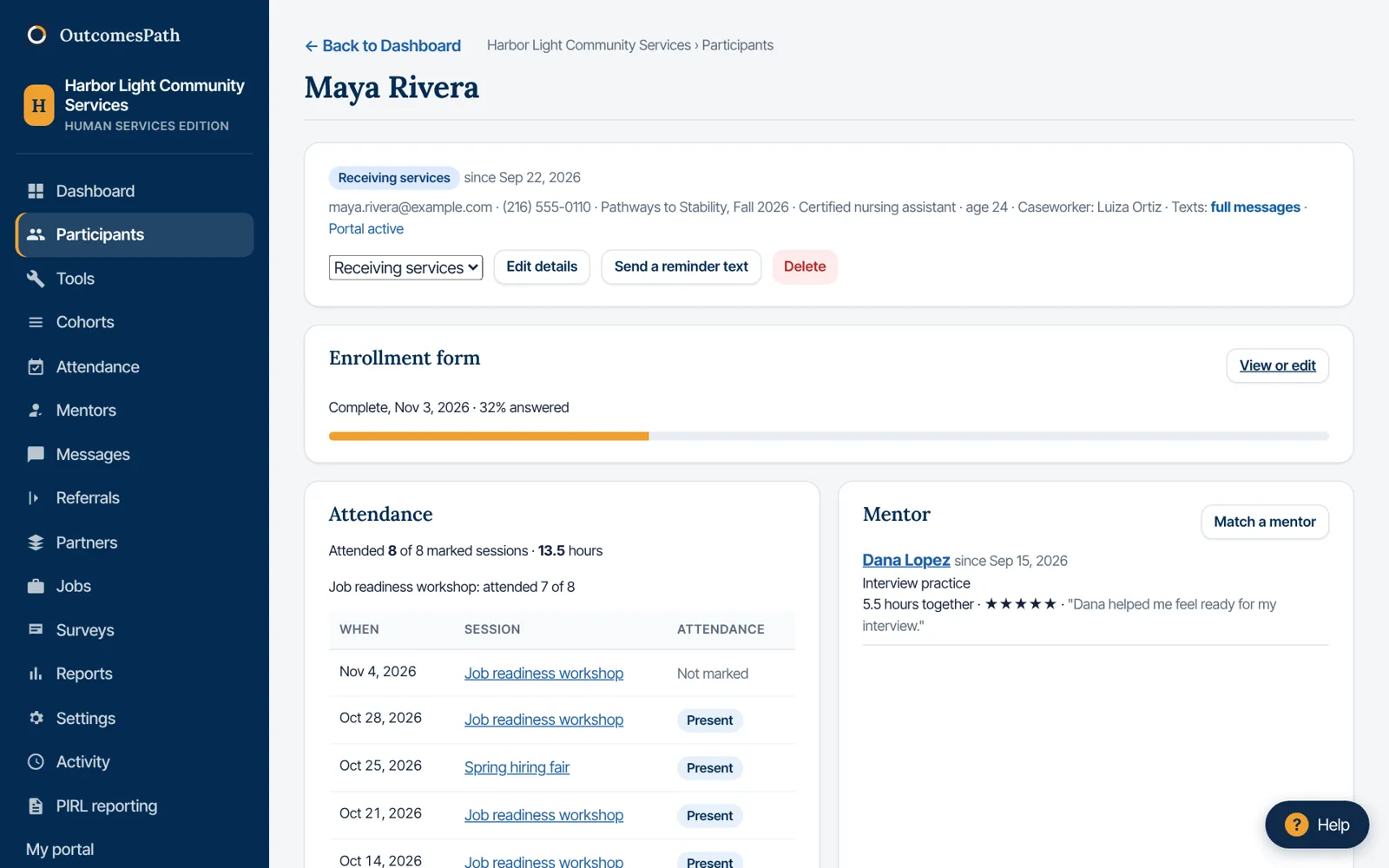
From the first inquiry to employment and retention, with every referral, note, and status change in one timeline. The same file works for a job seeker at a workforce board, a client at a nonprofit, or a student in a college workforce program.
Participant portal
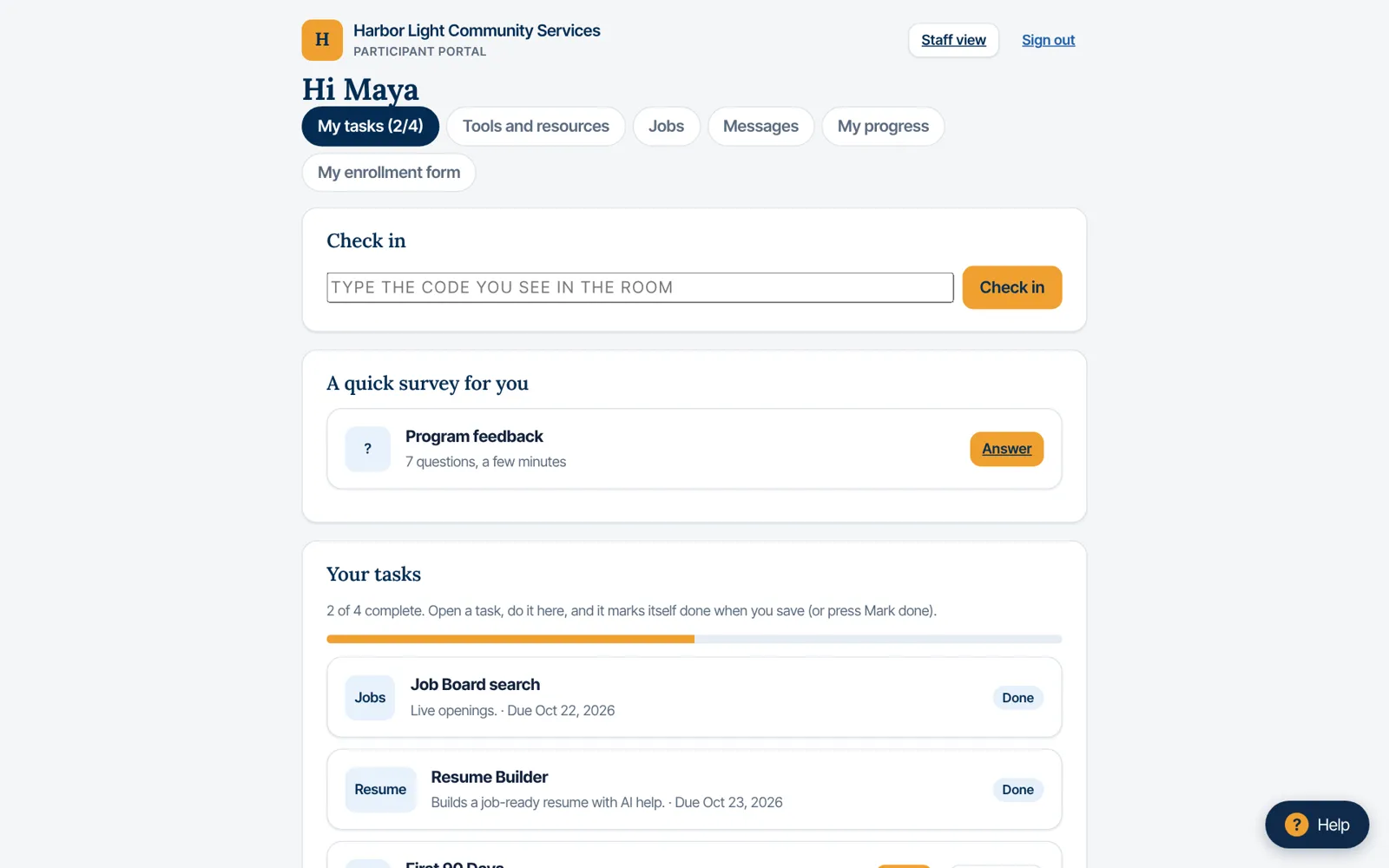
Participants sign in to your branded portal, see what is assigned, and do real work: resumes, interview practice, funding checks, career exploration. Tasks mark themselves complete.
Caseworker dashboard
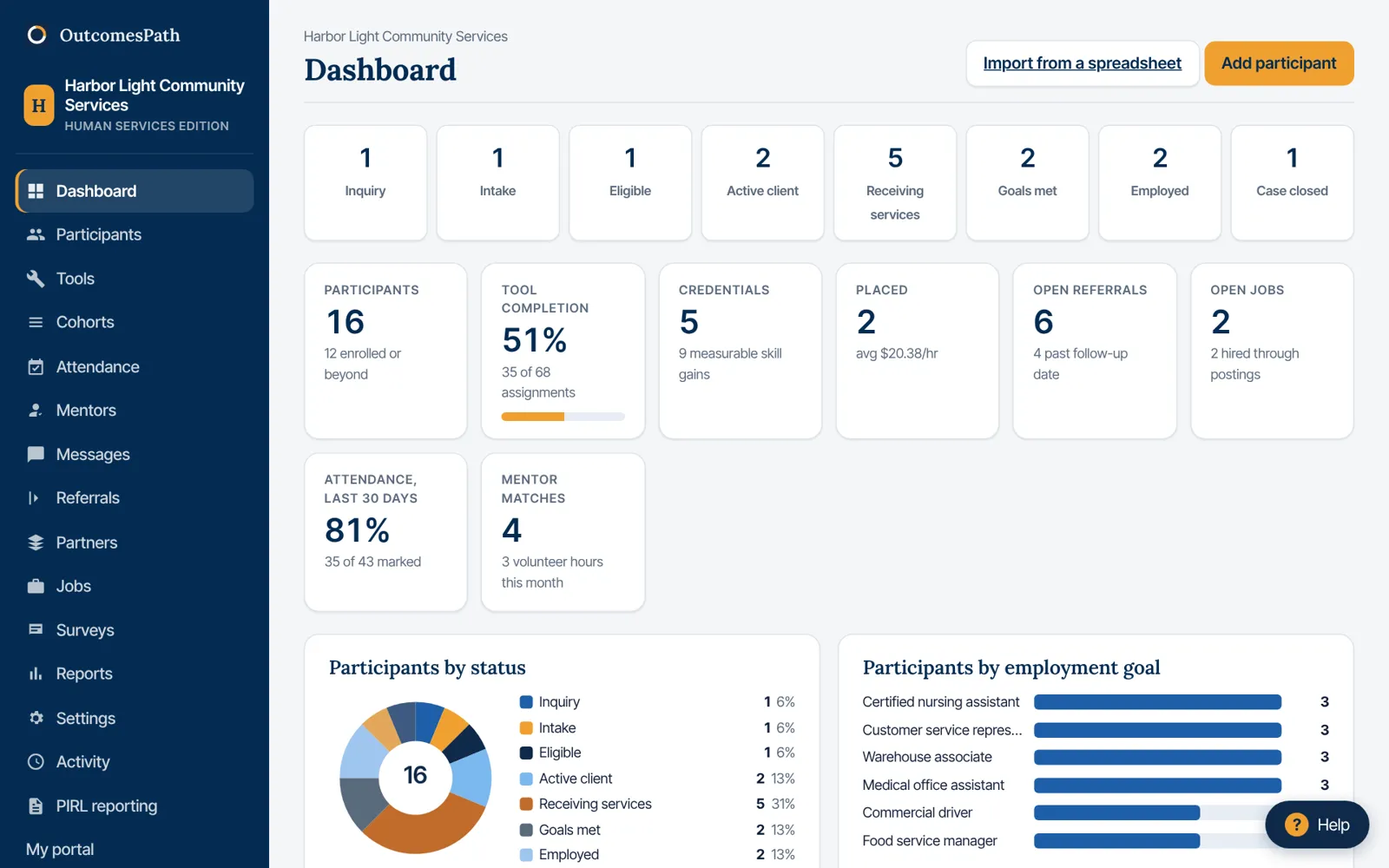
Who finished what, who has been stuck for three weeks, which referral follow-ups are overdue. The morning view a caseworker actually needs. Each person chooses the cards they see, and caseworkers can count only their own caseload.
Referrals that get tracked
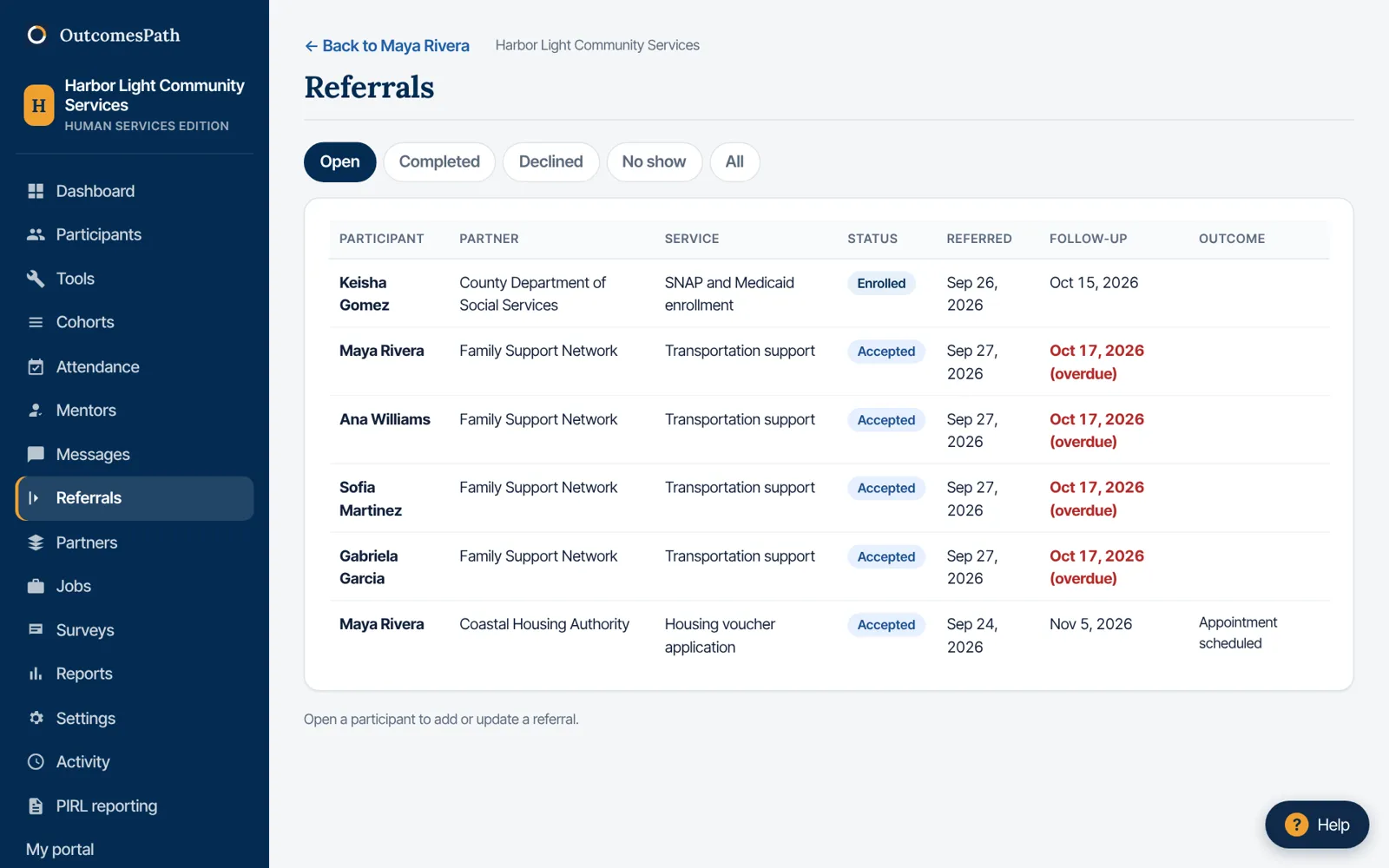
Send a participant to a training provider, housing partner, or legal aid, with a follow-up date and an outcome. Partners refer people in to you the same way, with their own login.
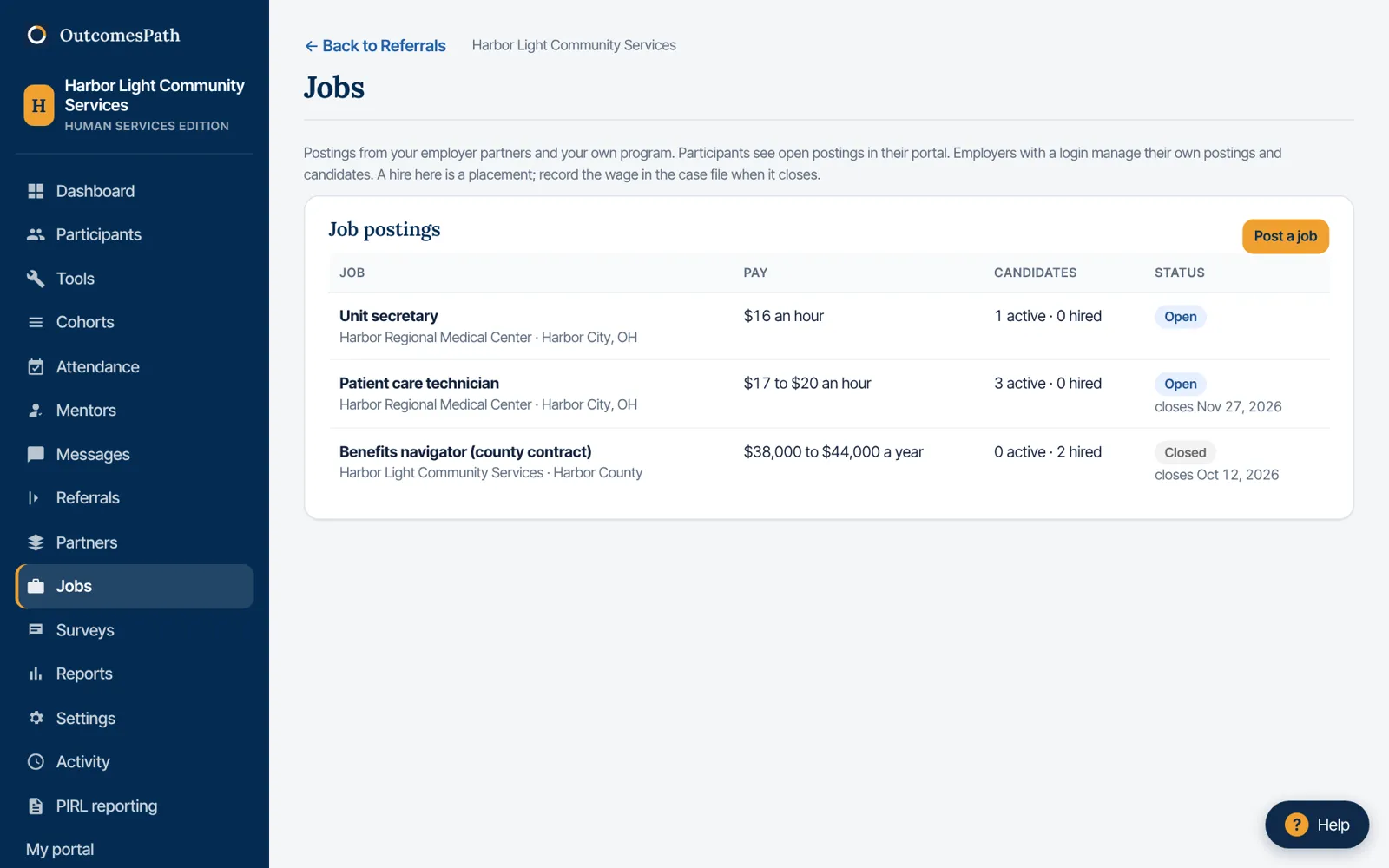
Employers post jobs
Employers get a login, post openings, and see only the participants who raised a hand or were referred. Every hire lands in your outcomes as a placement.
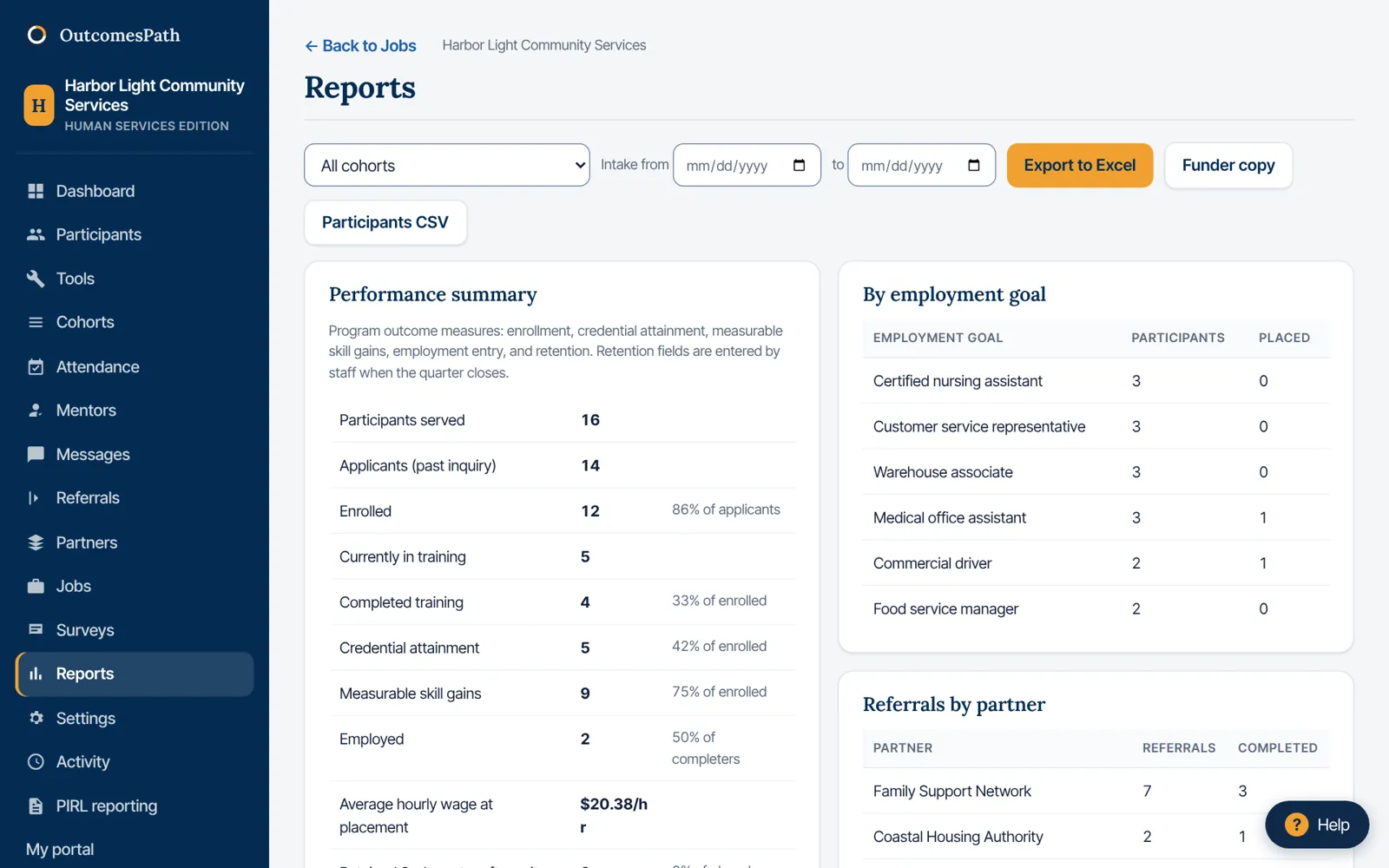
Reports funders accept
Enrollment, credentials, skill gains, employment, wages, and retention by cohort and date range, shaped to the measures your funder uses, in Excel.
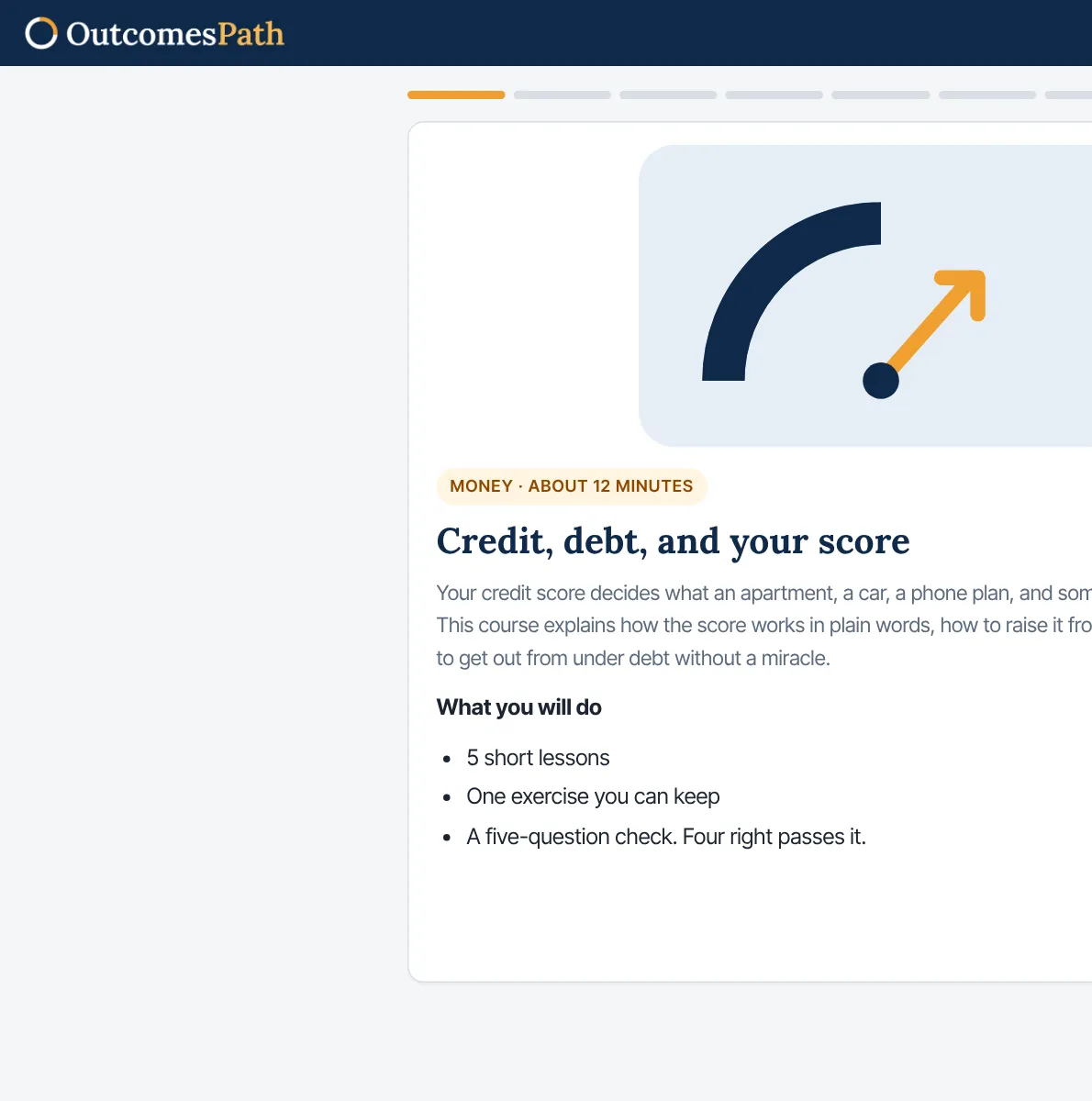
Skills Library
76 illustrated life skills courses staff assign in a click: interviewing, keeping the job, first paycheck, credit and debt, rights at work, managing stress, and a full reentry series. Each ends with a quick check, and passing marks the task done.
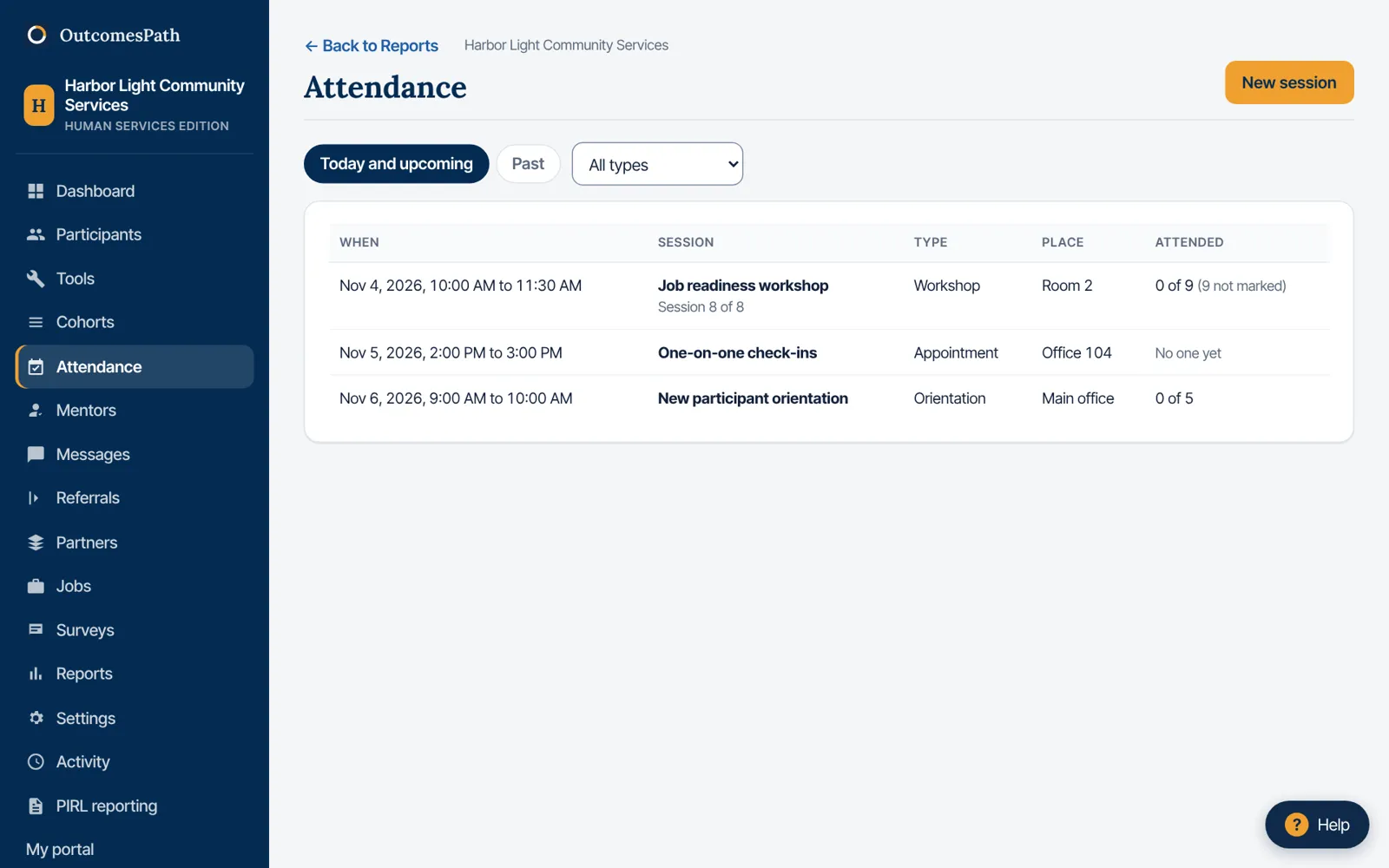
Attendance with phone check-in
Classes, workshops, appointments, and events, one session or a weekly series. Mark Present, Late, Absent, or Excused in two taps, or let people check in with a code. Two misses in a row land on the dashboard.
A full enrollment form
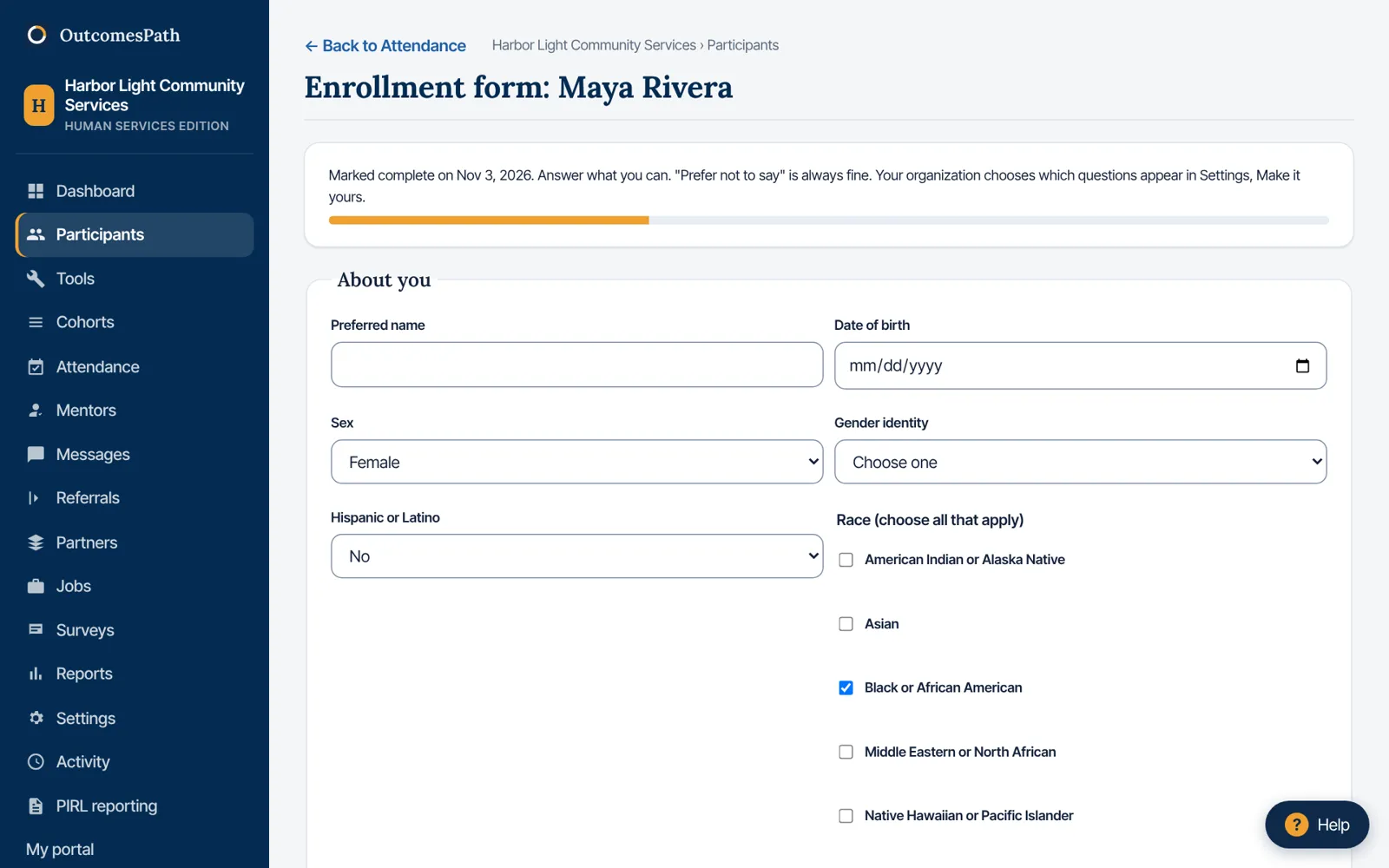
Demographics, household, background, education, work, and an emergency contact. Participants can fill it in from their phone, a section at a time, and finish later.
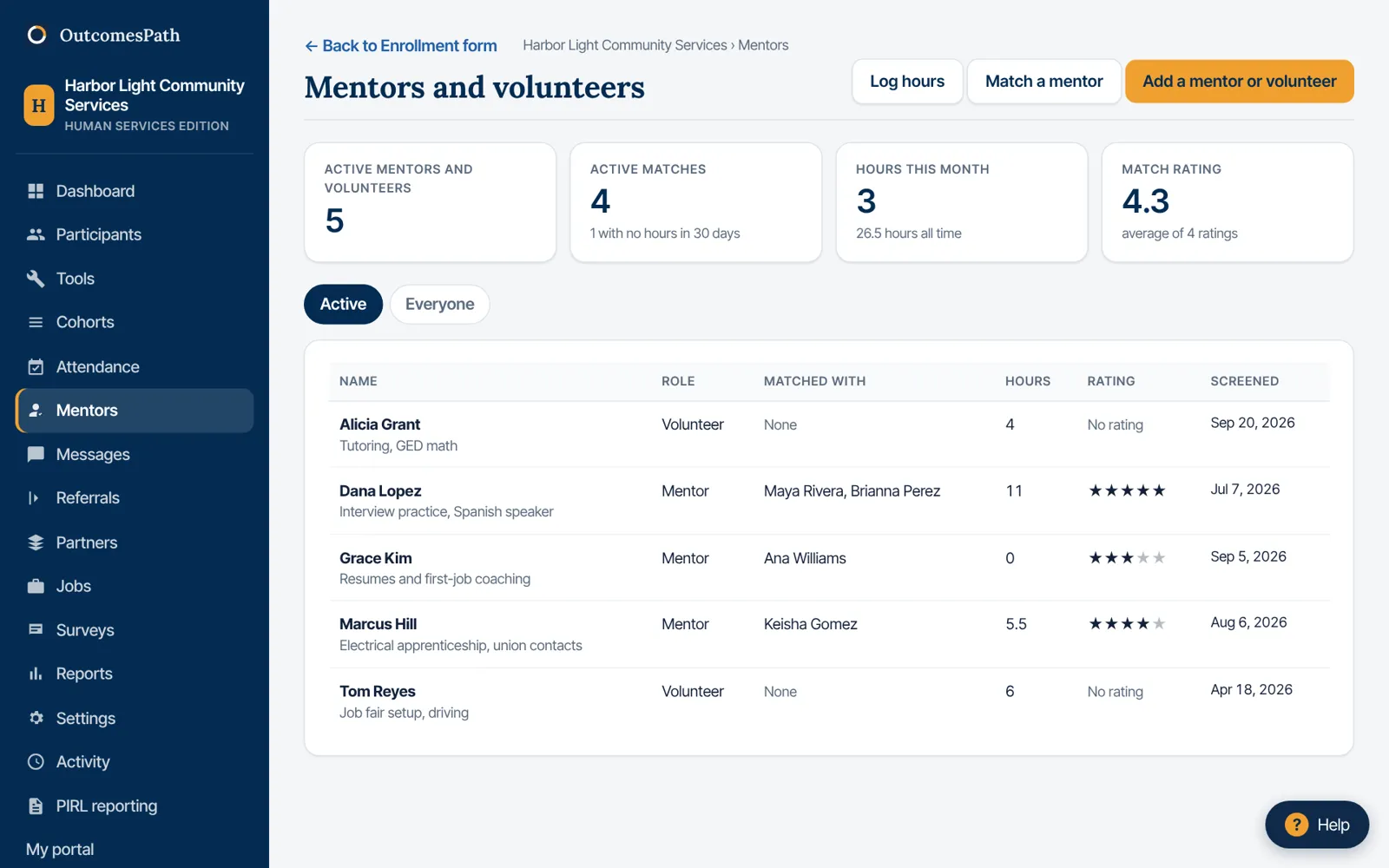
Mentors and volunteers
Match mentors with participants, log volunteer hours, and collect feedback from both sides, right next to the case file.
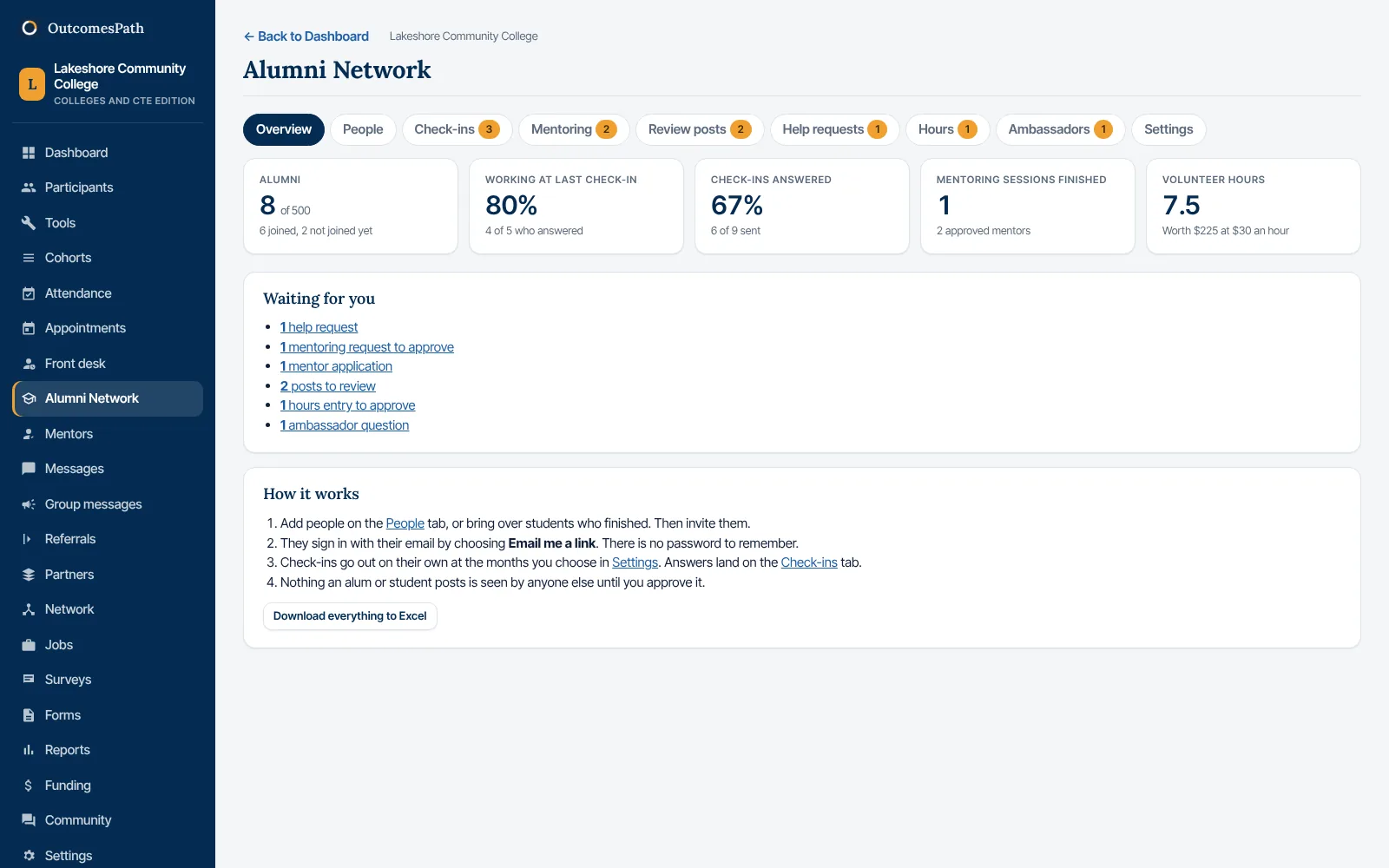
Alumni Network
Stay in touch after people finish. Outcome check-ins at 3, 6 and 12 months, one button when someone needs help again, staff-approved mentoring, stories, job leads, and volunteer hours for match. An add-on, included in every pilot. See the Alumni Network.
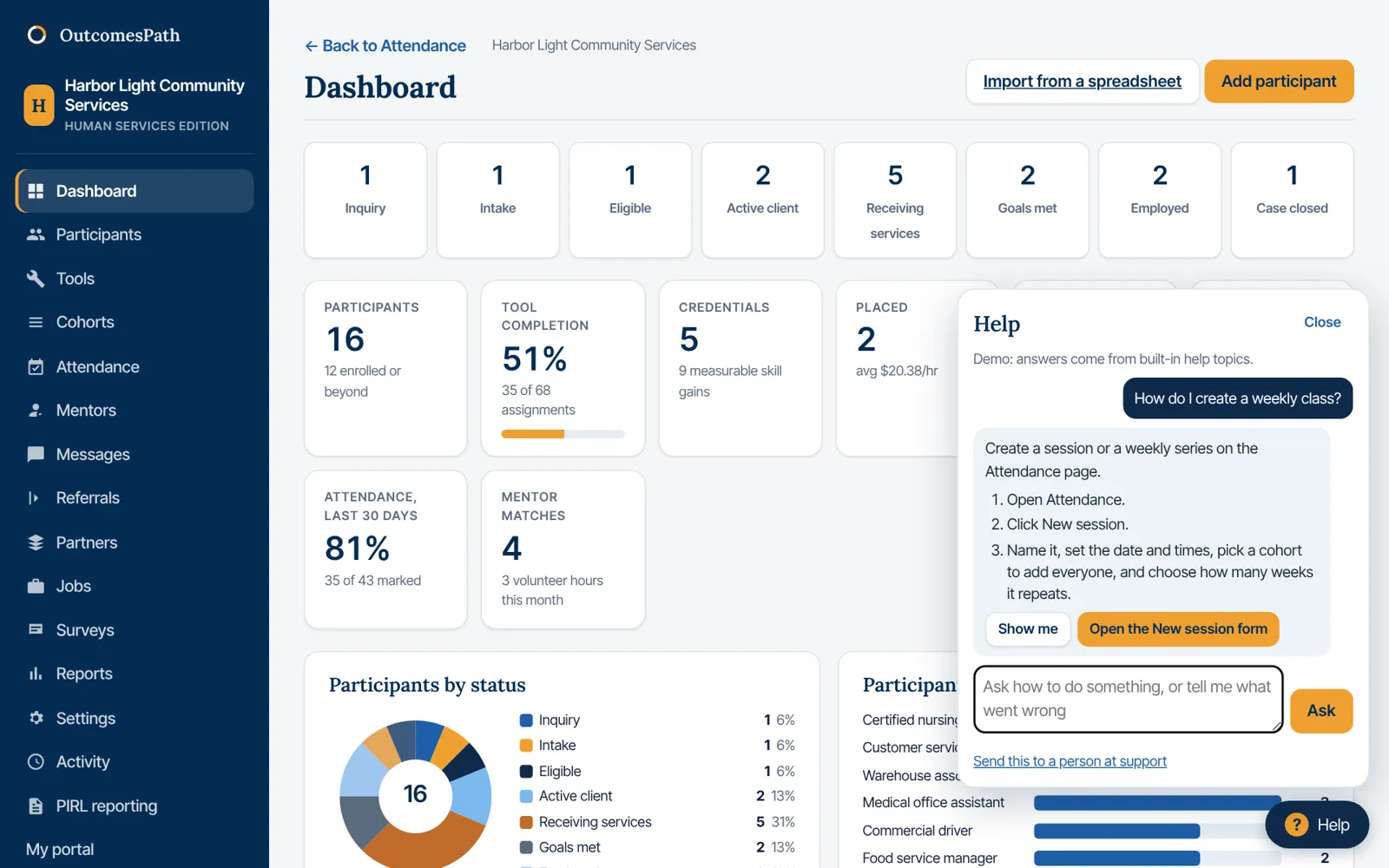
Help where you work
Ask the Help button how to do something. It answers in plain words, points at the right button, and can open the page for you. It is not sent participant records, names typed into a question are removed first, and one click reaches a person at support.
Staff also have a full illustrated user guide in the app, with screenshots and numbered arrows. Owners and admins can turn every AI feature off with one switch.
Make it yours
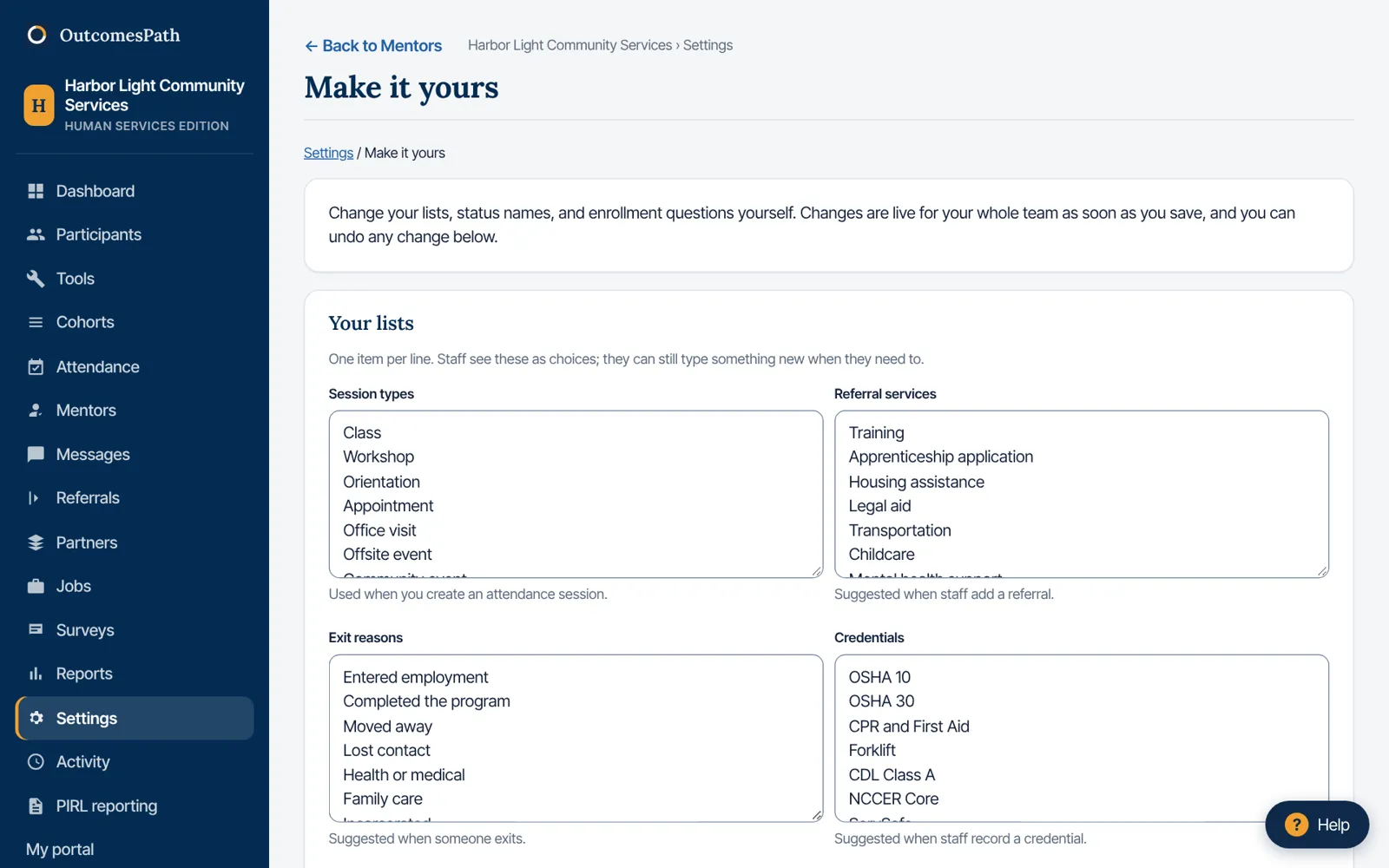
Edit your own dropdown lists, rename statuses, choose which questions are required, and add your own. Every change can be undone.
Forms you build
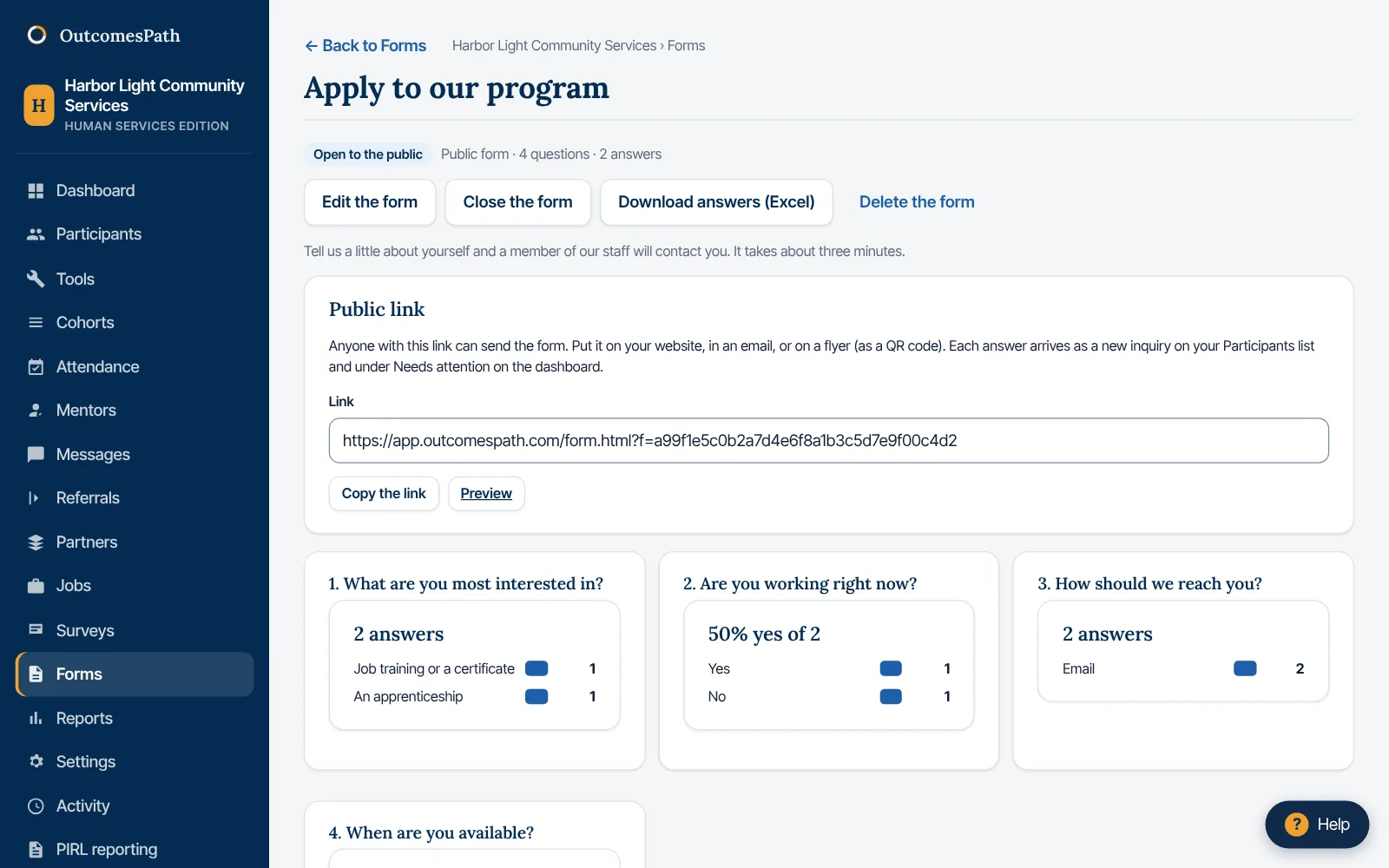
Build your own forms. Put a public form, such as an application, on your website, in an email, or on a flyer, and each answer arrives as a new inquiry with the answers on the case file. Staff forms, such as an intake assessment or exit interview, are filled in right on the case file. Every answer downloads to Excel.
Permission groups
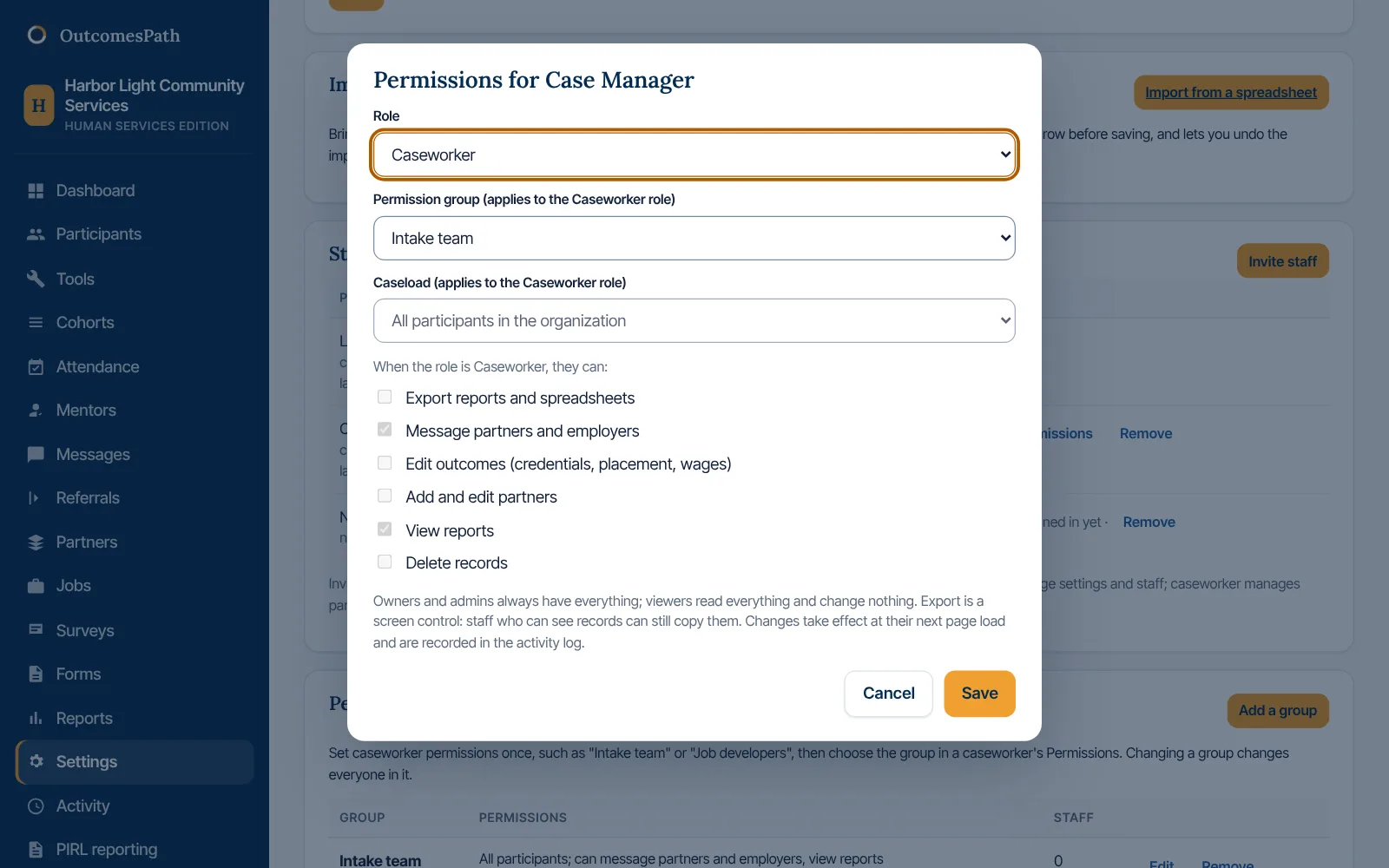
Set caseworker permissions once for a team, such as an intake team or job developers, then place staff in the group. Change the group and everyone in it changes with it. Caseload limits are enforced in the database, not only on screen.
Support without sharing passwords
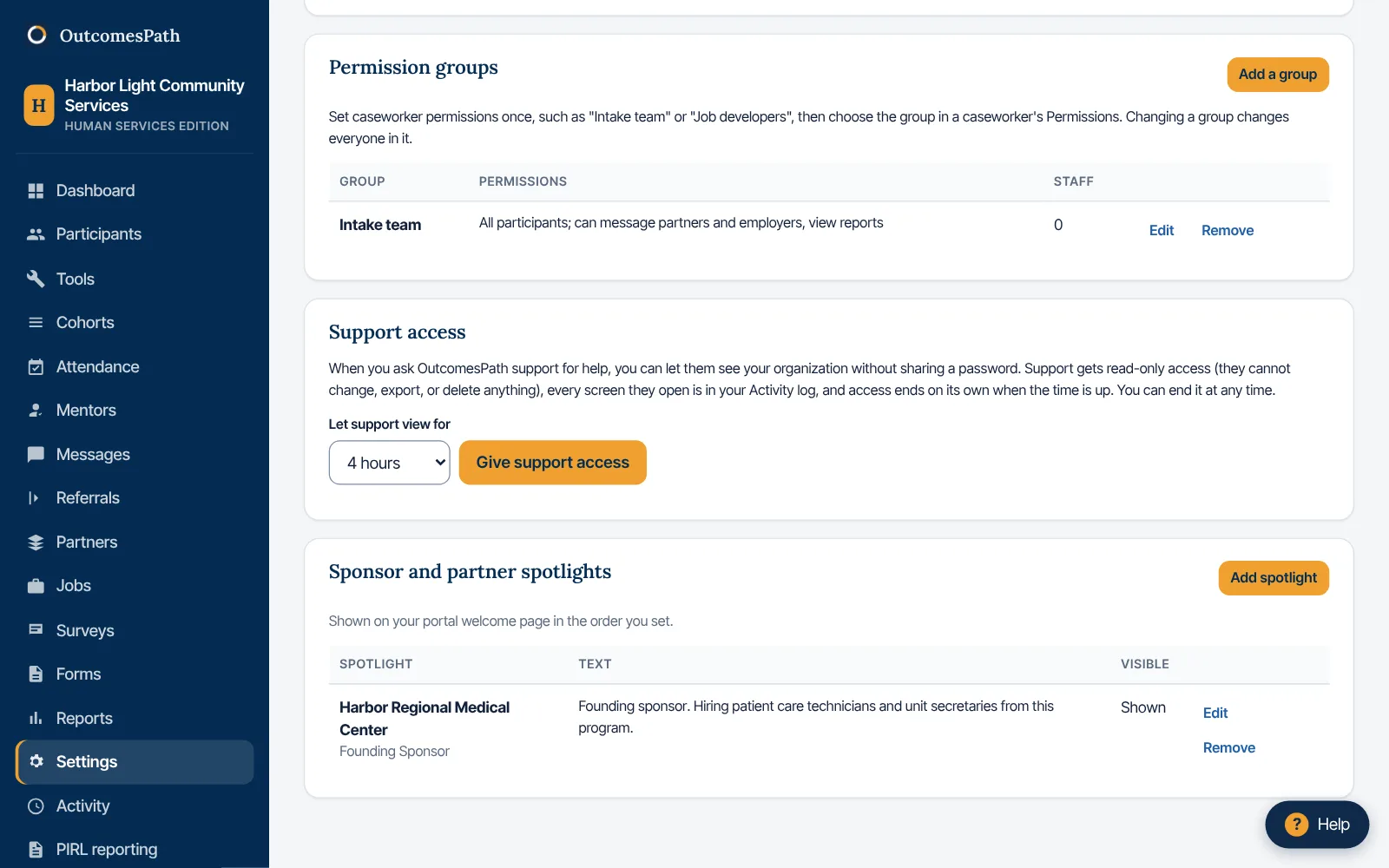
When you need help, give OutcomesPath support read-only access for 1 hour to 3 days, with no password shared. Support cannot change, export, or delete anything, every screen they open is in your activity log, and access ends on its own. You can end it at any time.
Service plans
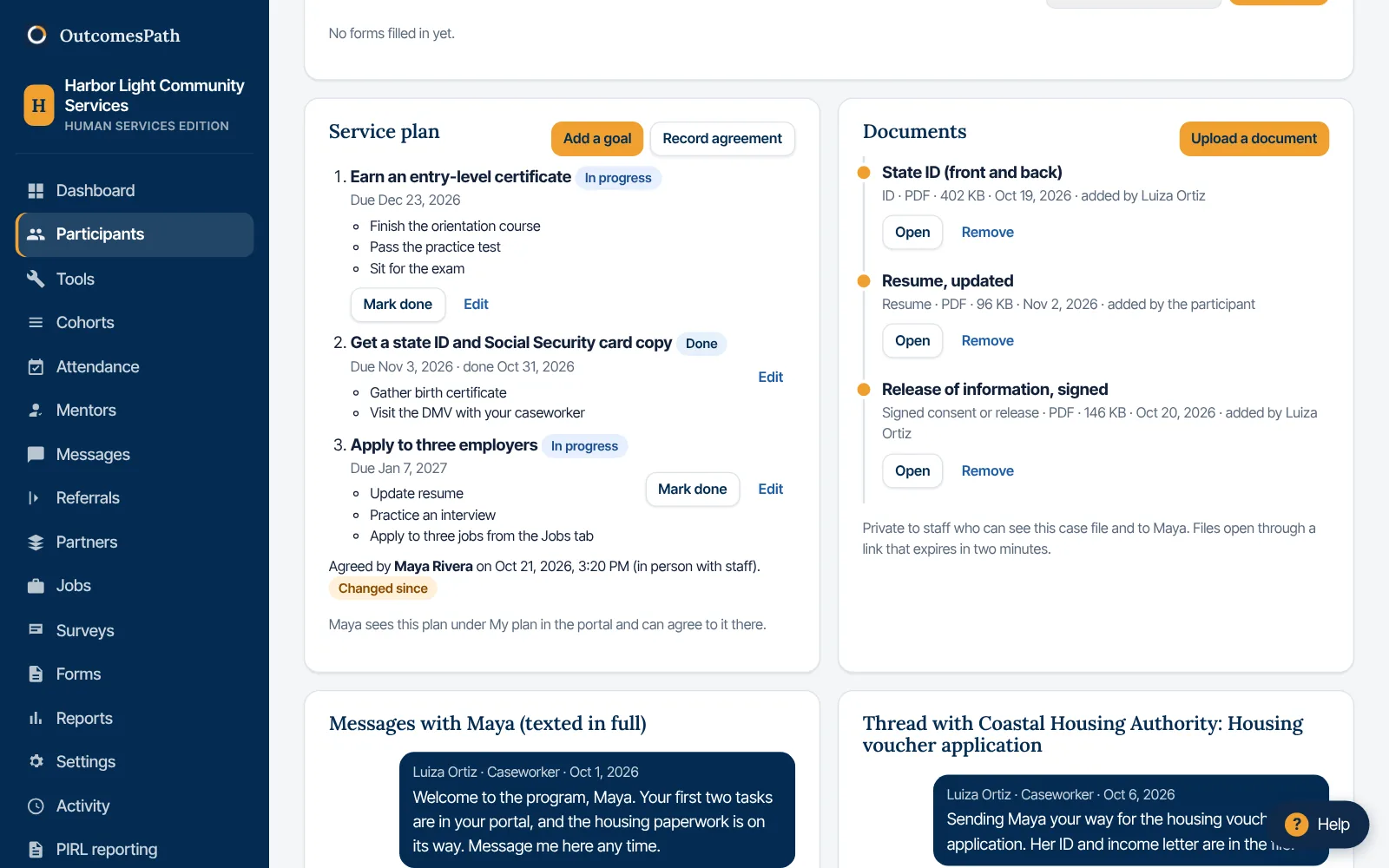
Set an individual service plan on each case file: goals, the steps for each, and due dates. The participant reads it under My plan and agrees by typing their name, or agrees in person with staff. The goals they agreed to are kept with the date and time, and the plan shows when it changed after they agreed.
Documents and signed forms
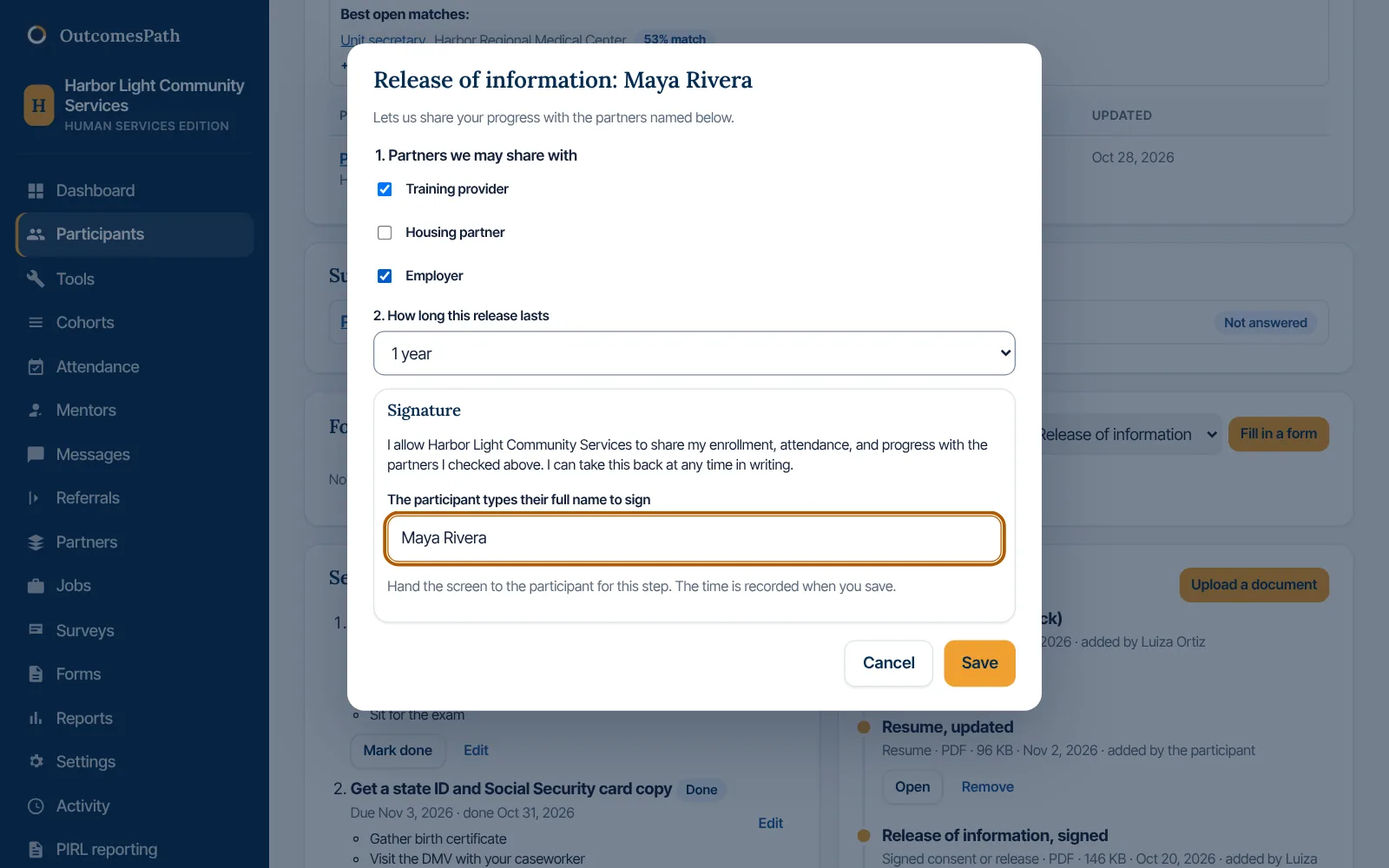
Upload IDs, resumes, certificates, and signed releases to the case file, up to 10 MB each, and let participants send their own from the portal. Files are private to staff who can see the case and to the participant, and open through a link that expires in two minutes. Any form you build can ask for a typed signature; the name, the statement signed, and the server time are saved with the answers.
Spanish for staff and participants
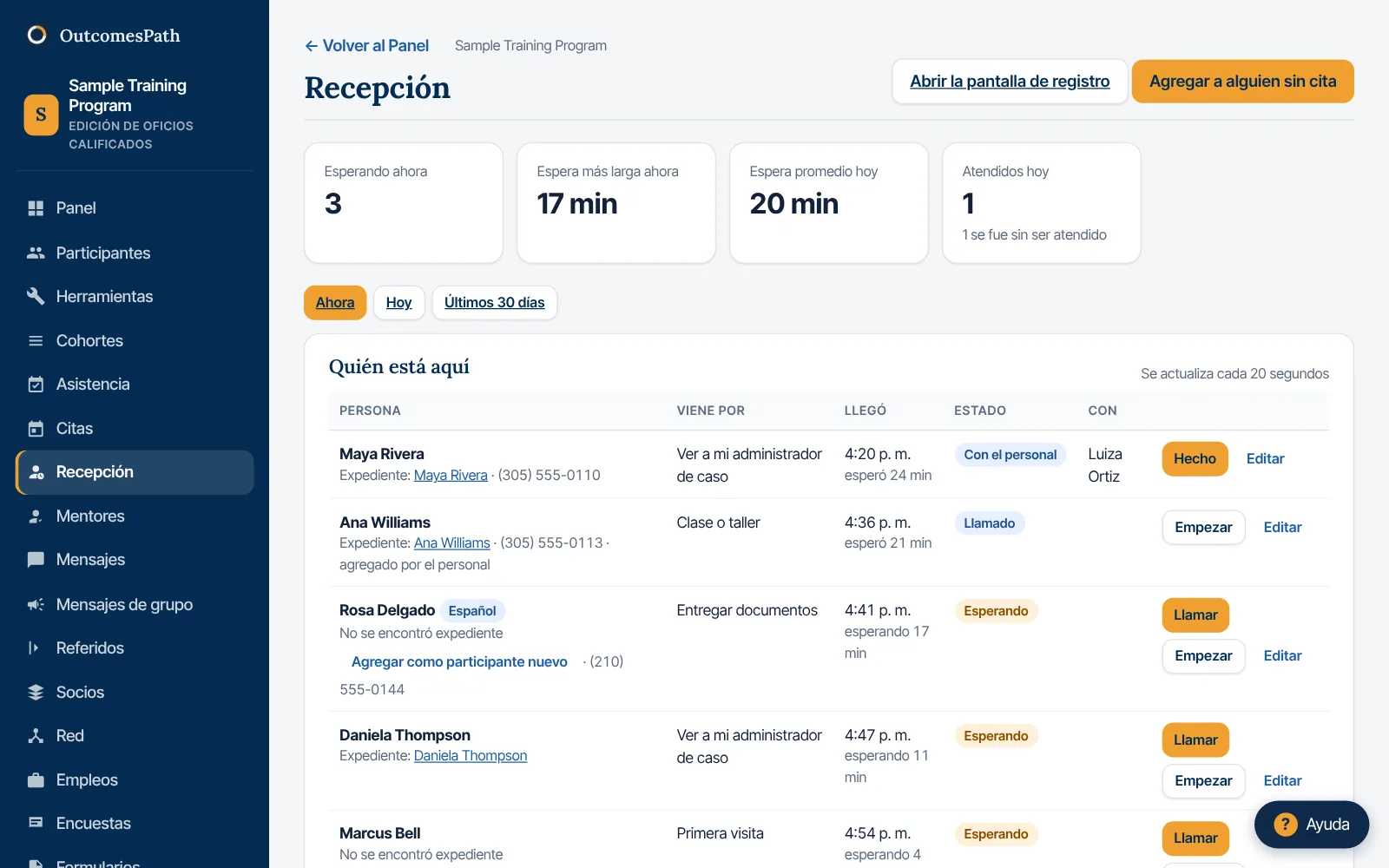
Each staff member can switch their own screens to Spanish with one link in the menu, and the choice stays on that computer or phone. Names, notes, and anything people type stay as written. Participants switch their portal to Spanish with one tap, and phones and computers set to Spanish open it in Spanish on their own: tasks, plan, documents, messages, progress, and the enrollment form. The career tools and Skills Library courses are in English for now.
Ask for any report
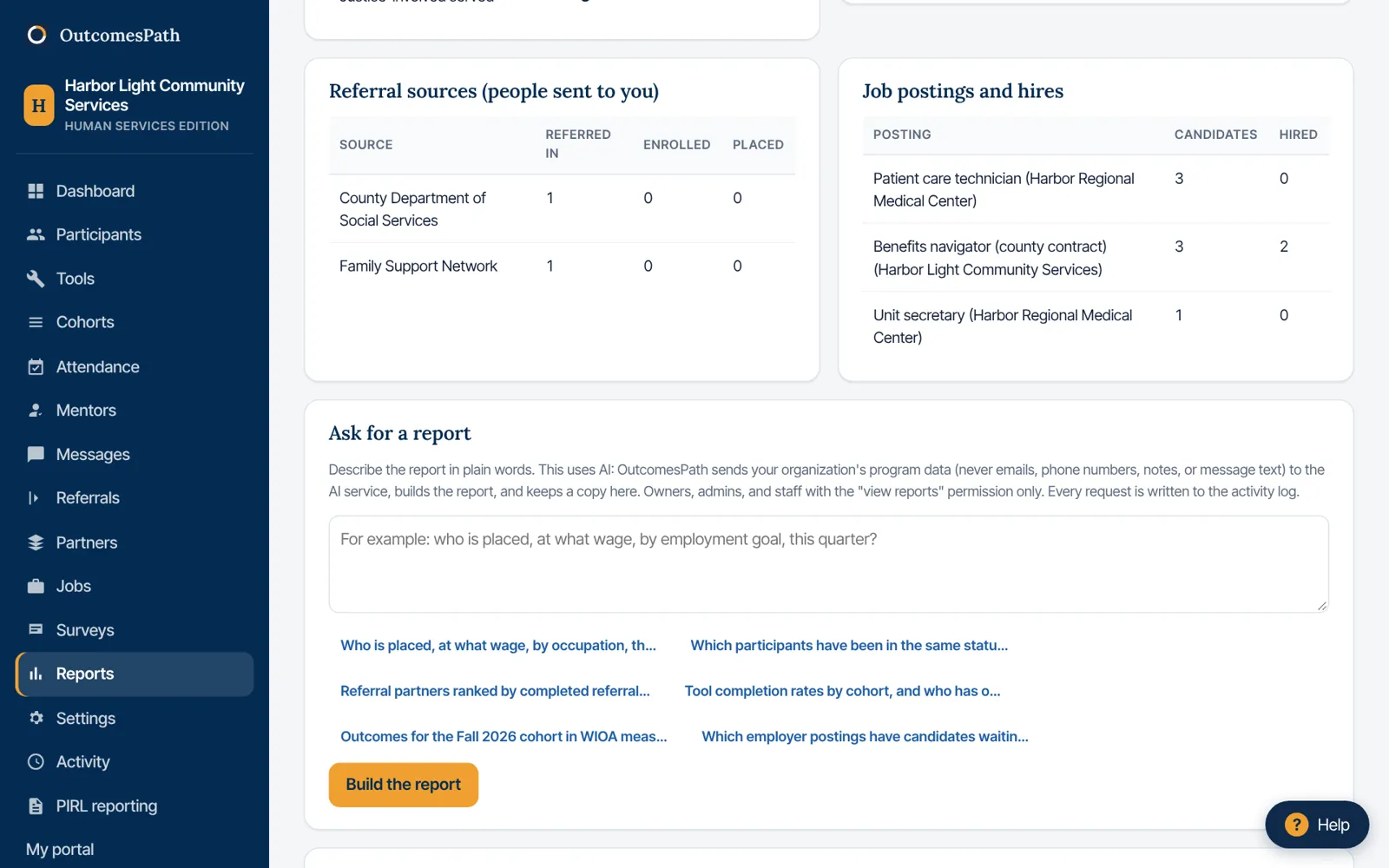
Type the question in plain words. OutcomesPath gathers your program data, builds the report with tables, keeps a copy, and hands it to you as Excel. Staff with the reports permission only, and every request is logged.
Front desk queue
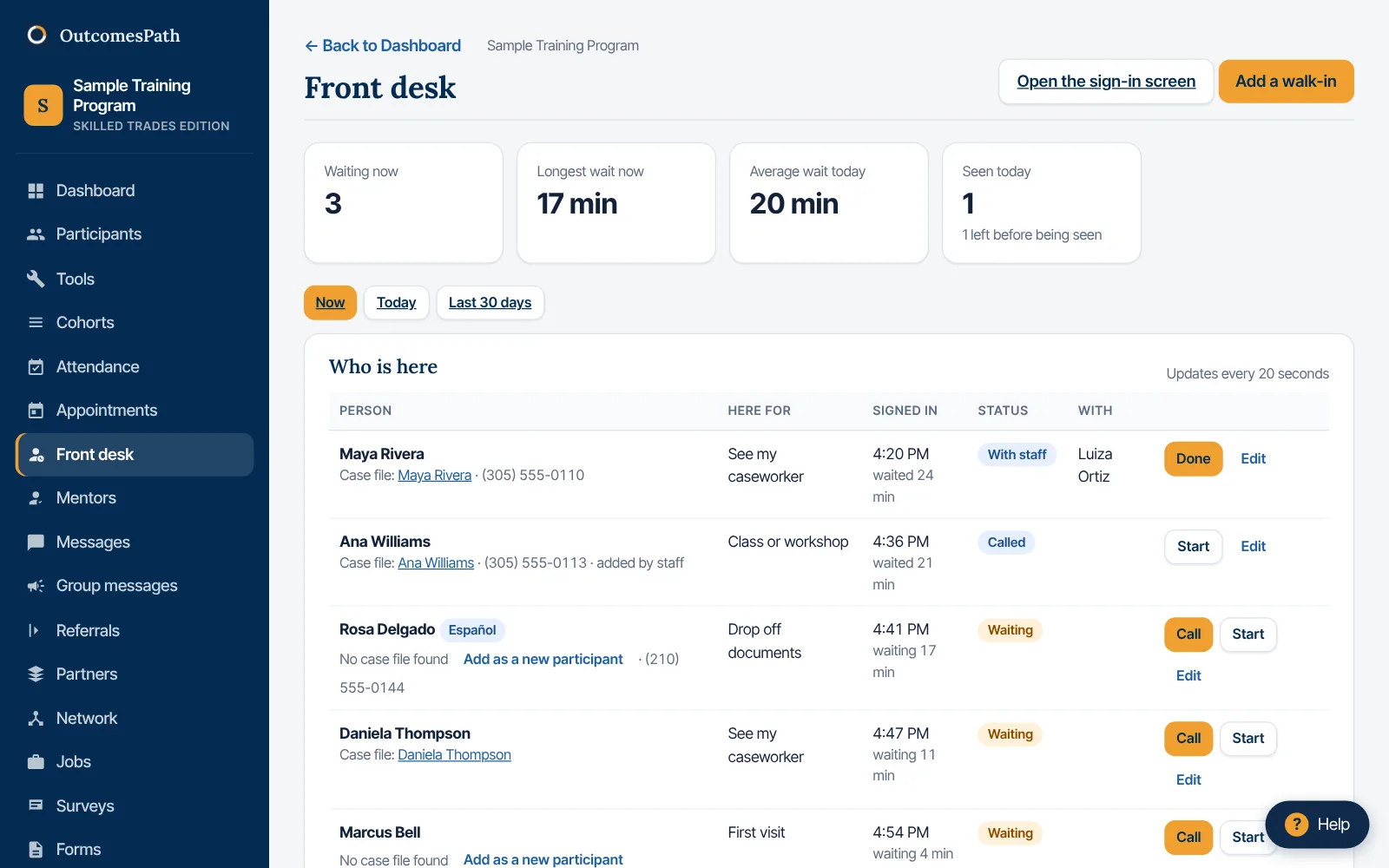
Visitors sign in on a lobby tablet in English or Spanish, or staff add walk-ins. The Front desk page shows who is waiting, what they came in for, and how long they have waited. Call the next person, start the visit, and mark it done. Each visit is matched to a case file by phone or name, and someone new can be added as a participant in one step. The lobby screen never shows who else is waiting, and the last 30 days of visits and wait times export to Excel.
Appointments with reminders
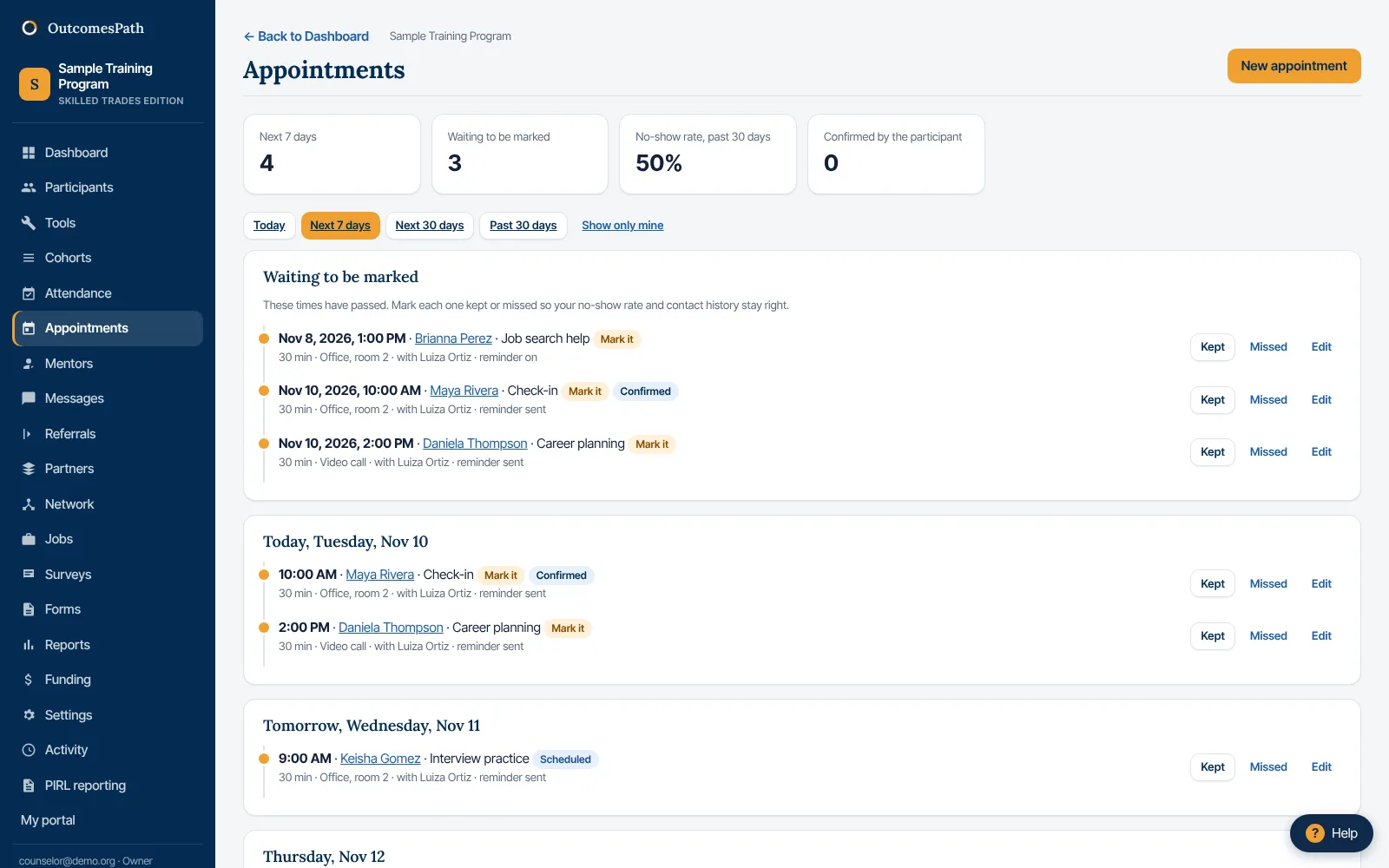
Book a time from the calendar or the case file. The participant gets an email the day before, and a text if they agreed to texts, and taps "I will be there" or adds it to their phone calendar. The reminder says when and where, never what it is for. Mark each one kept or missed, and the no-show rate for the past 30 days sits at the top of the page.
Secure facility mode
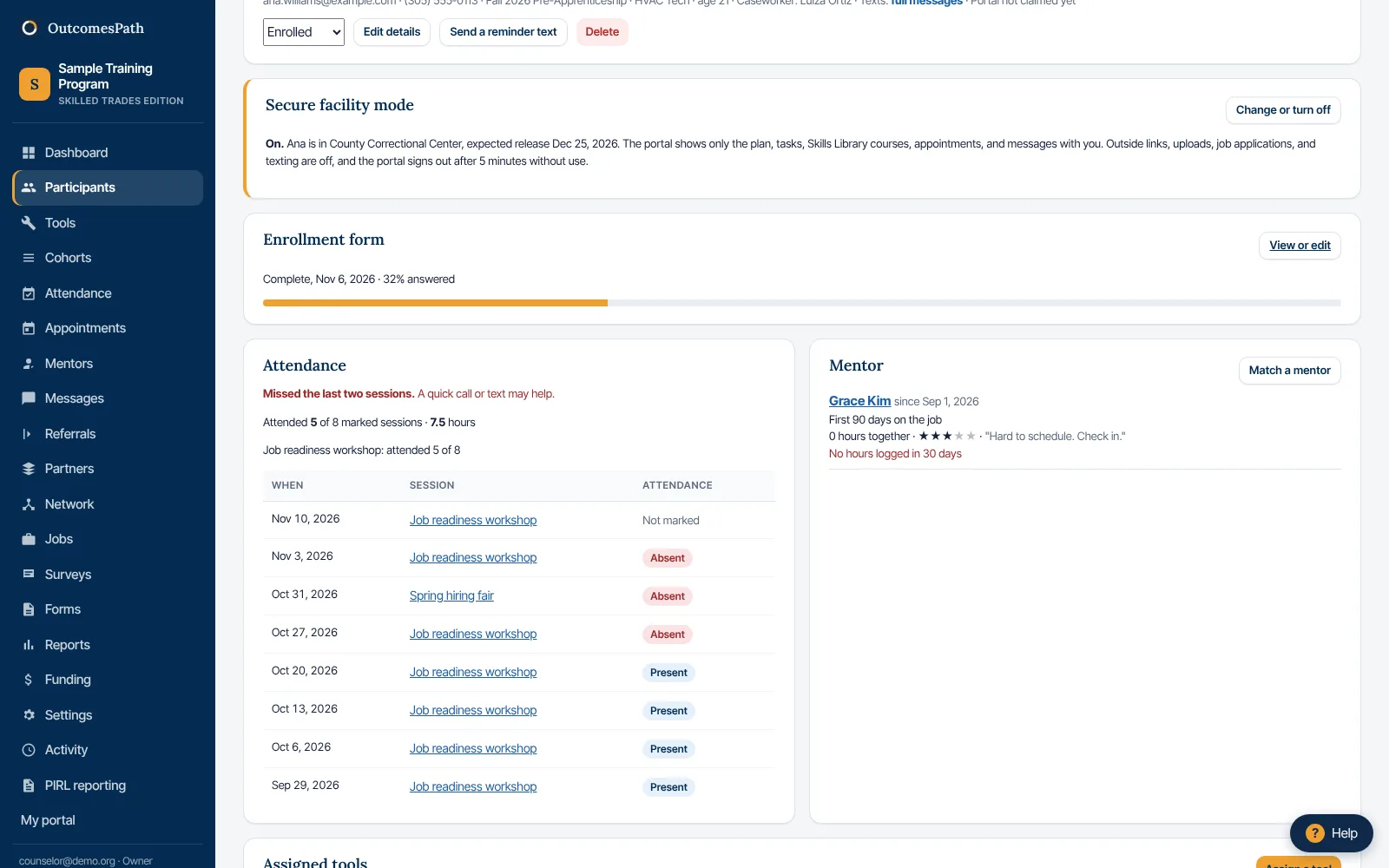
For people in a jail, prison, or other secure setting. The portal shows only the plan, tasks, Skills Library courses, appointments, jobs to save for release, and messages with the caseworker. Outside links, uploads, job applications, and texting are off, and it signs out after five minutes. Staff give people with no email a sign-in ID and password, and can hold every message for review. On release day, staff turn it off: the saved jobs open with an apply button, and the same account, plan, and history carry on.
Grant money beside QuickBooks
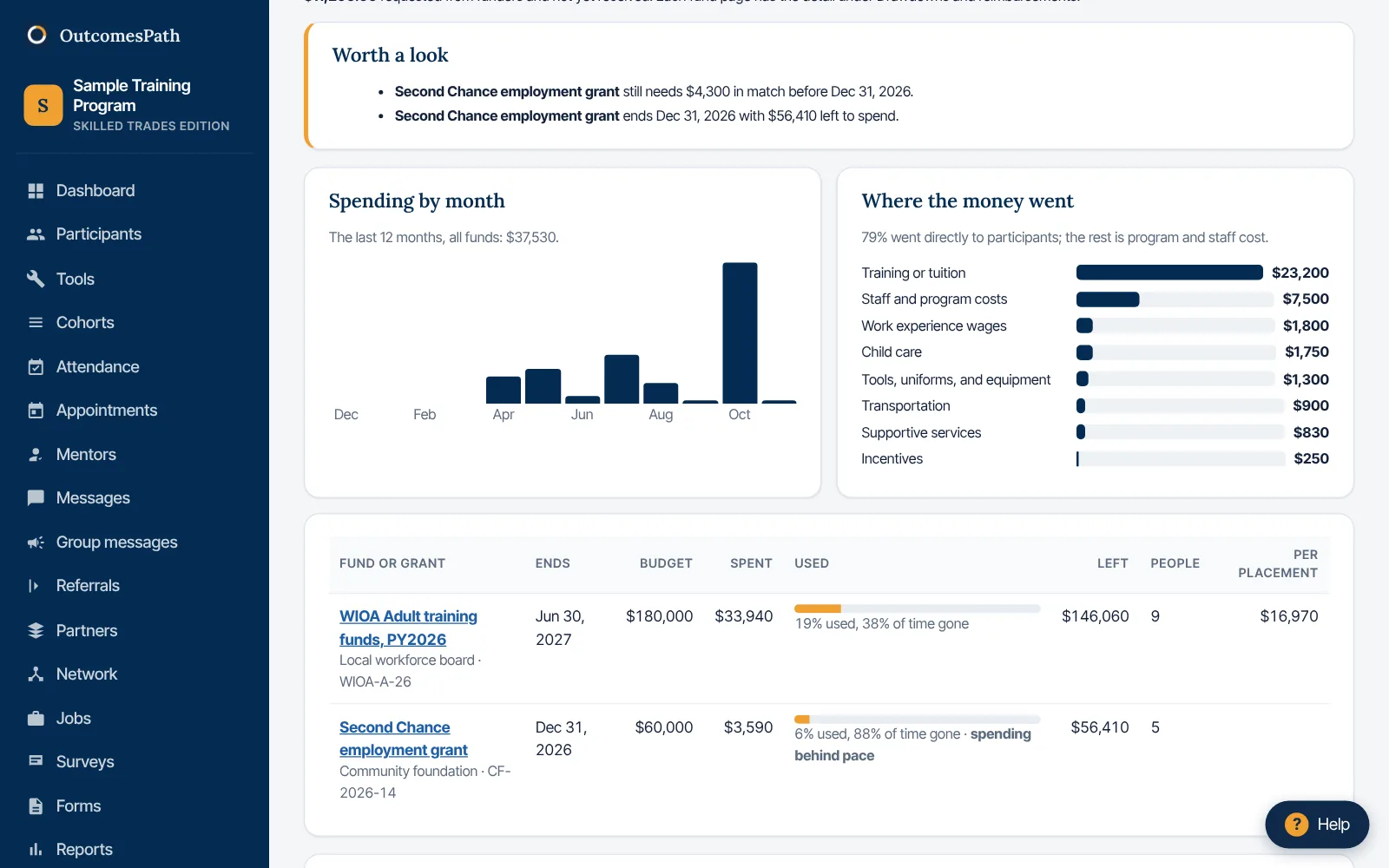
Add each grant, contract, or donation with its budget and dates. Record training vouchers, bus passes, tools, child care, and program costs as they happen. See what is spent, what is left, the cost per person served and per job placement, and whether spending is keeping pace with the calendar. Bring spending in from QuickBooks or any accounting system with an Excel export, then track each grant by its approved budget lines and its match, let caseworkers ask for payments that an admin approves, track report due dates, drawdowns, indirect costs, and caps per person, manage subawards with partner invoices, close out a grant in one click, and choose from 22 standard financial reports or ask for one in plain words. See how it works with QuickBooks.
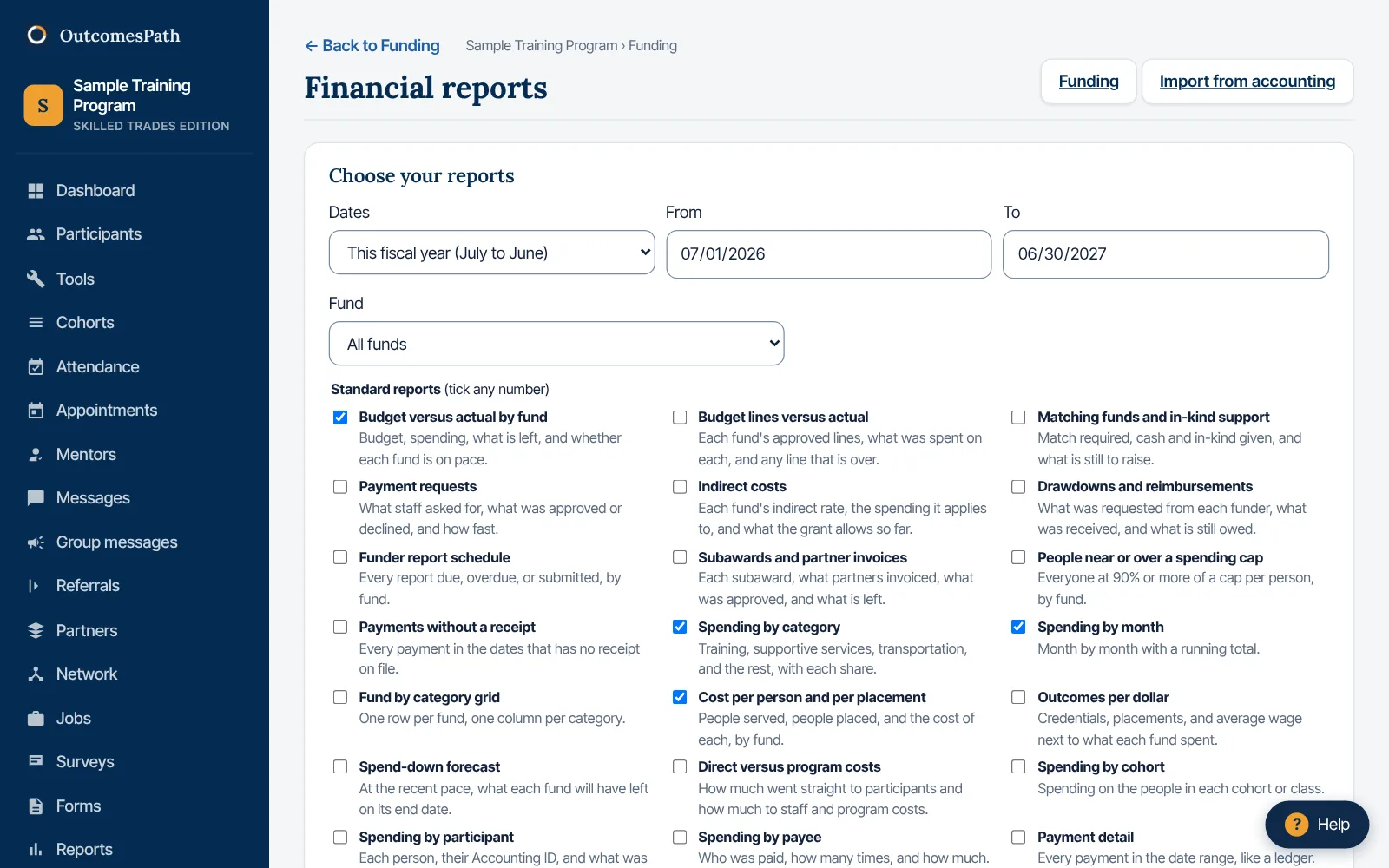
Twenty-two financial reports
Choose your dates and funds and tick the reports you need: budget versus actual, budget lines, match, indirect costs, drawdowns, the funder report schedule, subawards, cost per placement, outcomes per dollar, a spend-down forecast, and more. Show them, print them, or download them all as one Excel workbook, with a file ready for your accountant. Need something else? Ask for it in plain words. See the full list.
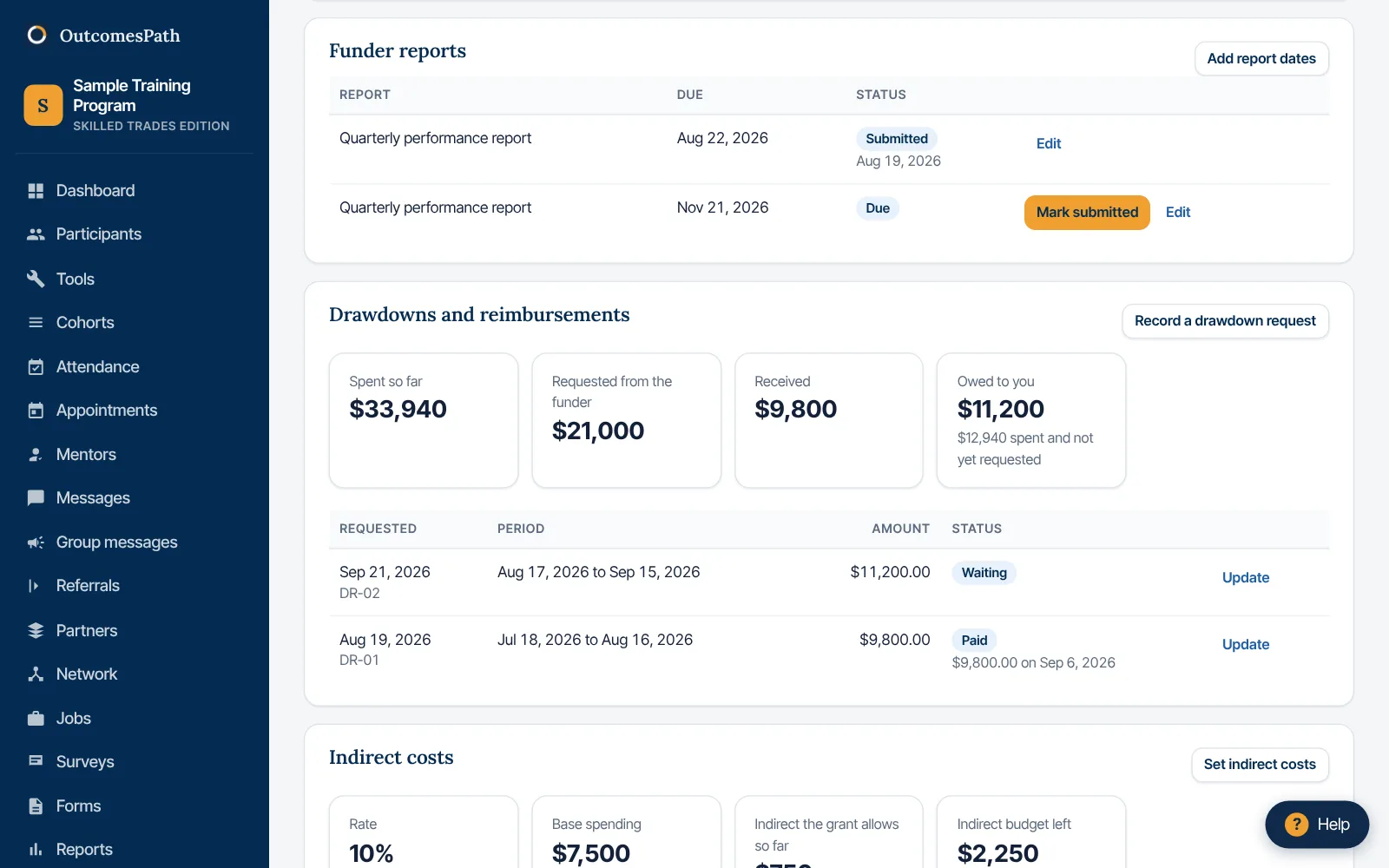
Grant compliance, built in
Every grant's funder report dates with email reminders, drawdowns and what is still owed to you, indirect costs, caps per person, budget history, and subawards with invoices from your partners. At the end, one click makes the closeout packet your auditor asks for. See all nine tools.
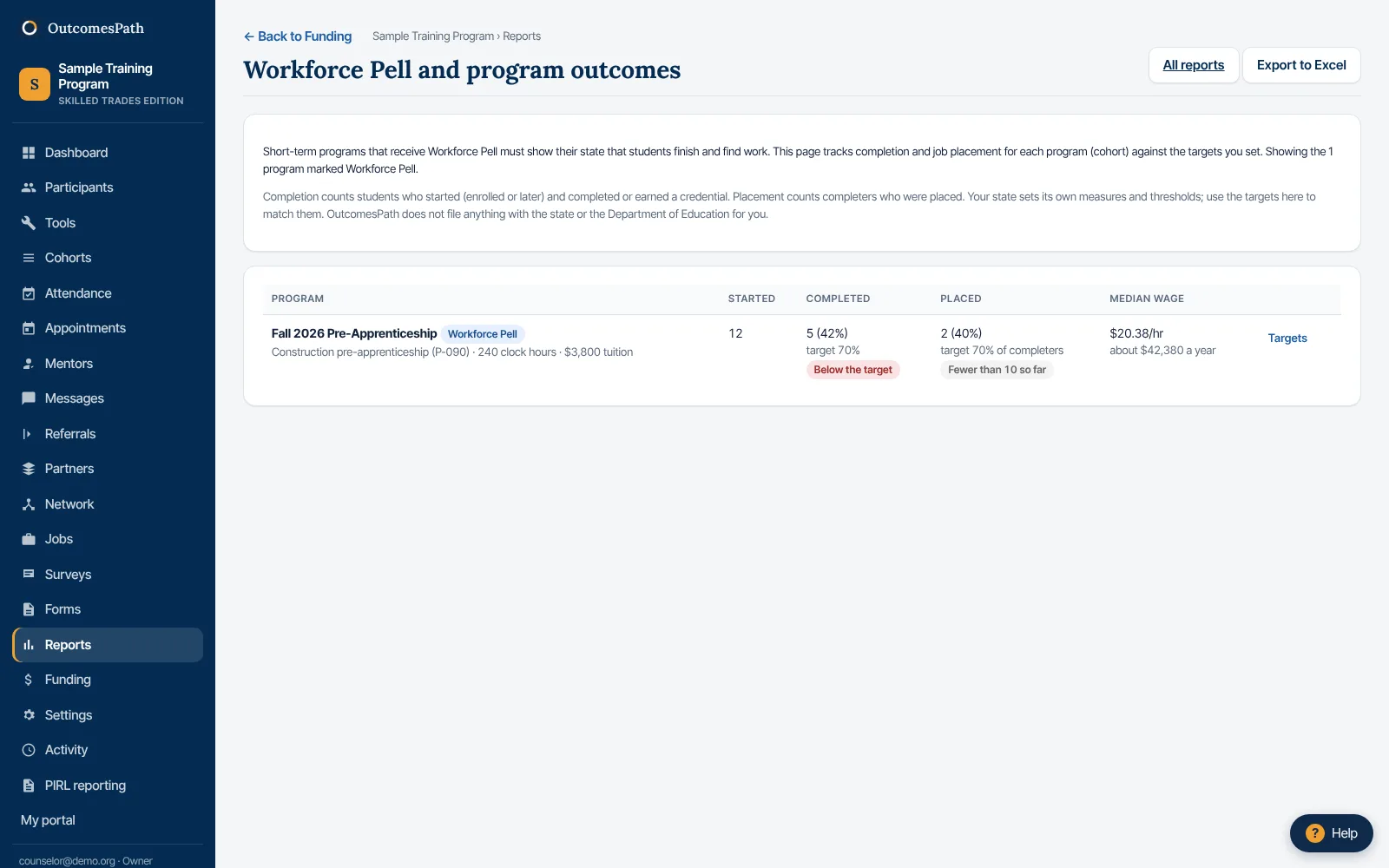
Workforce Pell outcomes
Mark each short-term program, set the completion and placement targets your state uses, and add clock hours and tuition. OutcomesPath shows every program against its targets, flags the ones falling behind, and exports a program sheet and a student sheet for your state.
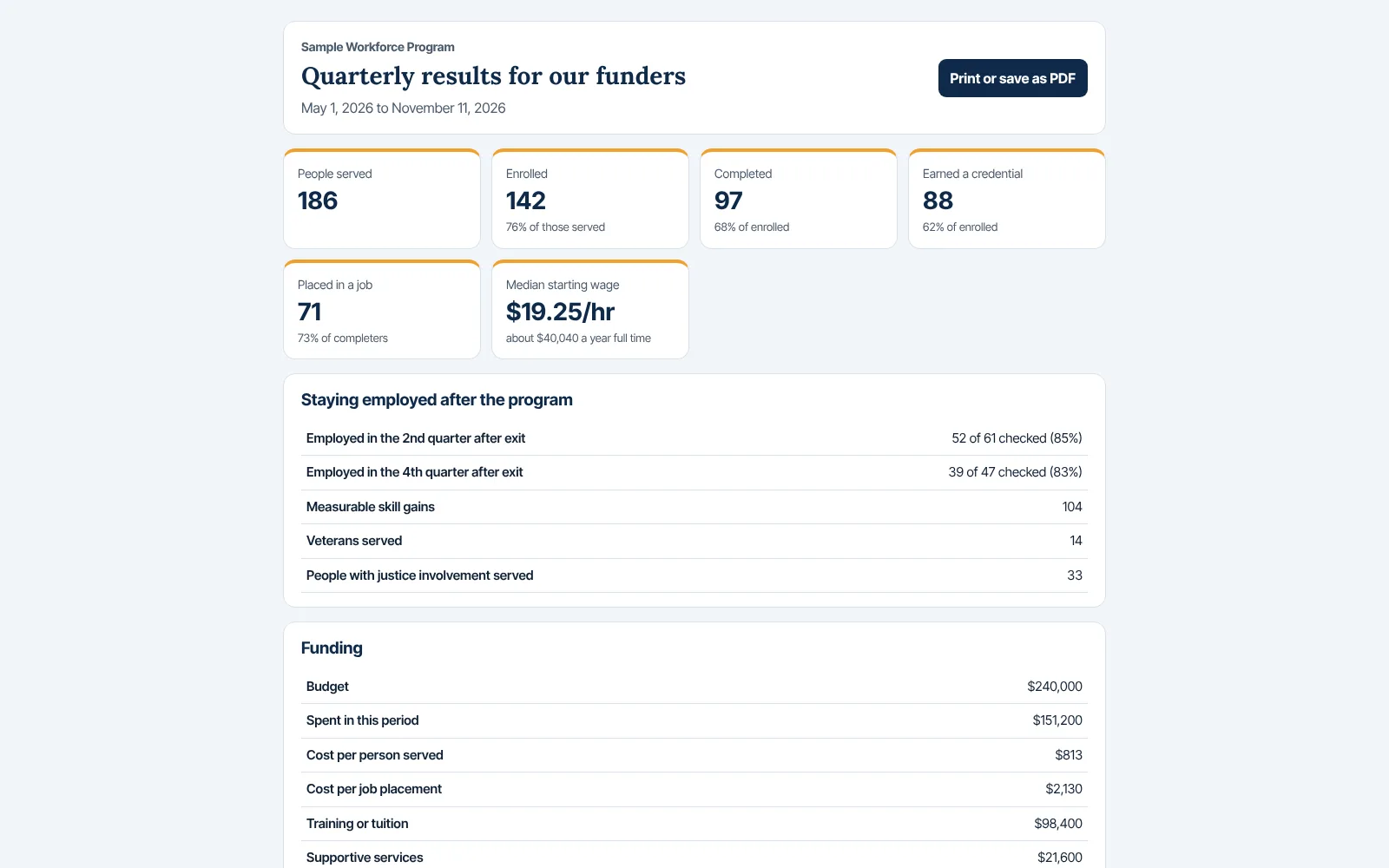
Live funder links
Create a link for a funder, a board, or a partner and choose what it covers. They see people served, completions, credentials, placements, median wage, retention, and, if you choose, spending. Totals only: no names or contact details, and any count from 1 to 4 is hidden. Turn a link off at any time, and see how many times it was opened.
The OutcomesPath Network
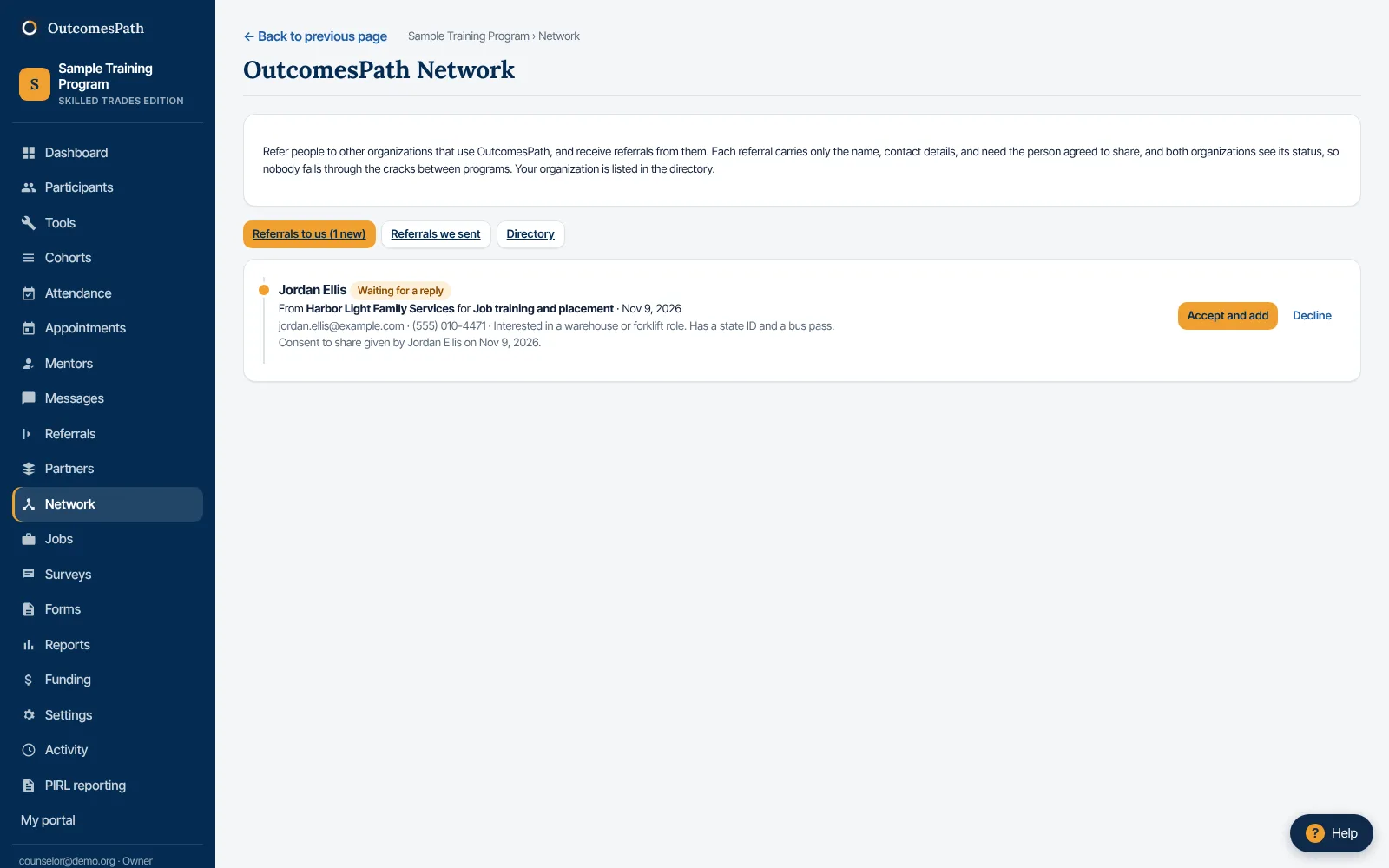
Find other programs that use OutcomesPath in the Network directory and refer someone in a few clicks. The person agrees first, only their name, contact details, and the need are shared, and both programs see whether the referral was accepted, the person enrolled, and was served. Nobody falls through the cracks between programs.
Data API
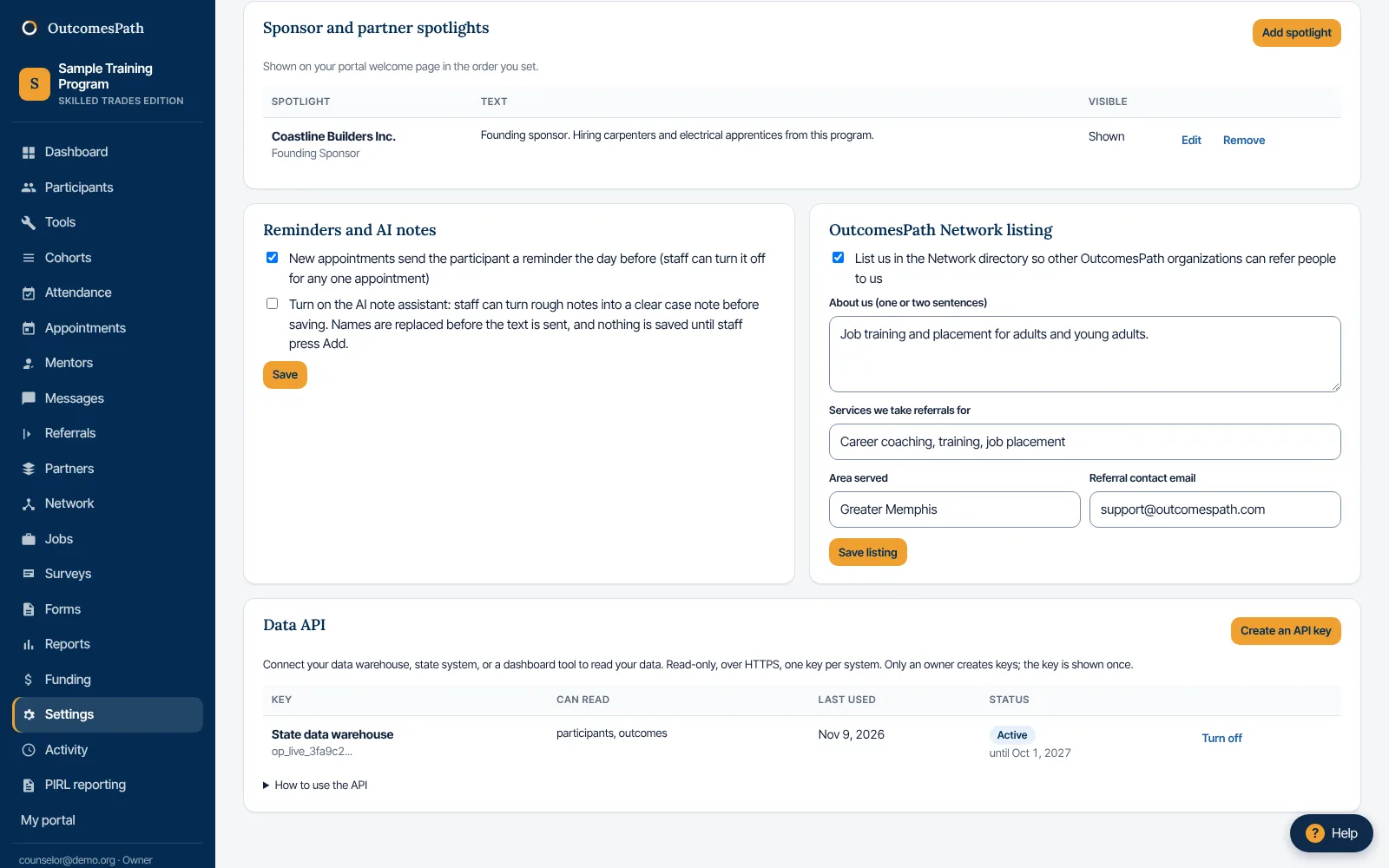
Owners create a read-only key for each system that needs your data, choose exactly what it can read, and set when it stops working. Notes, messages, documents, and demographics are never available through the API. Each key shows when it was last used, and turning one off takes a click.
Also new
AI note assistant
Caseworkers type or dictate what happened in any order and get a clear, factual case note with a summary, actions, and next steps. It never adds facts. The participant's name is replaced before the text leaves OutcomesPath, and nothing is saved until the caseworker reads it and clicks Add. Off until an owner turns it on.
Import your data in minutes
Export your people from your old system as Excel or CSV and import the file yourself. OutcomesPath matches your columns to its own, checks every row before anything is saved, and lets you undo the import.
Works on a weak connection
Install OutcomesPath on a phone, tablet, or laptop like any app. Field staff who lose signal keep writing: a case note written offline is kept on the device and added on its own when the connection returns.
See it with your own program in mind
Every new organization gets a free pilot. Ask for demo access and we reply by email, usually the same business day, with your links.